
Navigation
1 Start menu
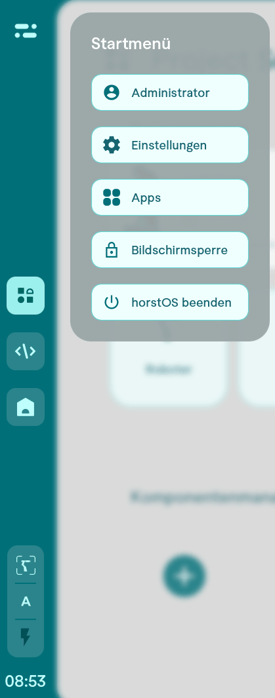
The omnipresent navigation bar is located on the left side of the screen. It can be used to access functions such as changing the user role, switching to the general settings or exiting horstOS.
It is also possible to switch between the 3 areas of the project.
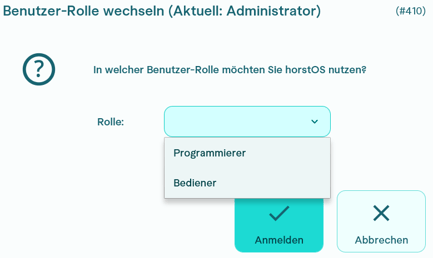
1.1 User role
The currently active user role is displayed. You can change the user role by clicking on the person icon. This is not possible in the program.
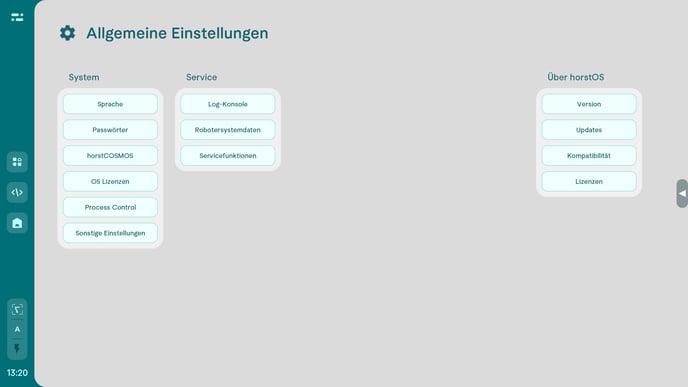
1.2 General settings
The settings are divided into system, service and horstOS settings.
1.3 Apps
**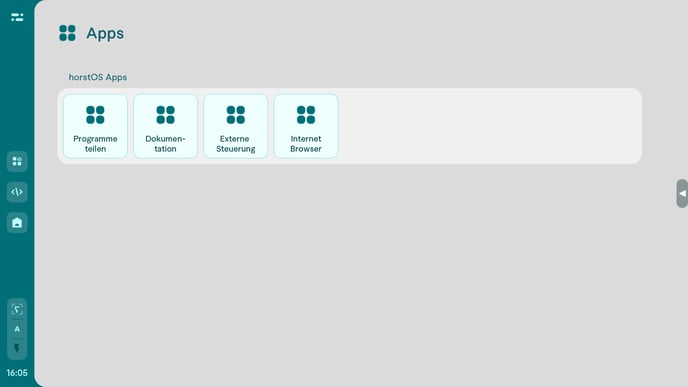
1.3.1 Share programs
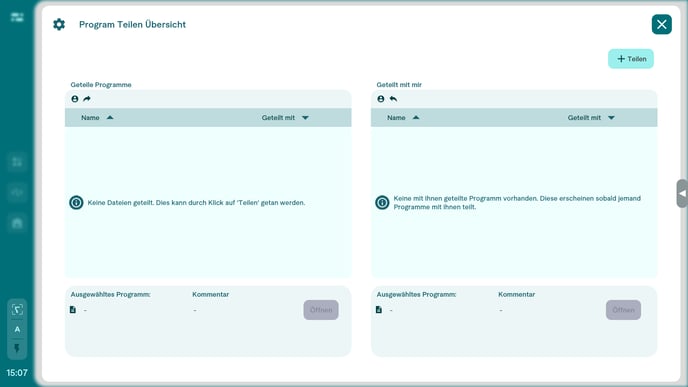
Written programs can be shared by email here. Simply press the +Share button in the top right corner and enter an email address.
1.3.2 Documentation**
This allows you to access the fruitcore knowledge base both offline and online, which means you can go directly to the documentation for horstOS, for example.
1.3.3 External Control**
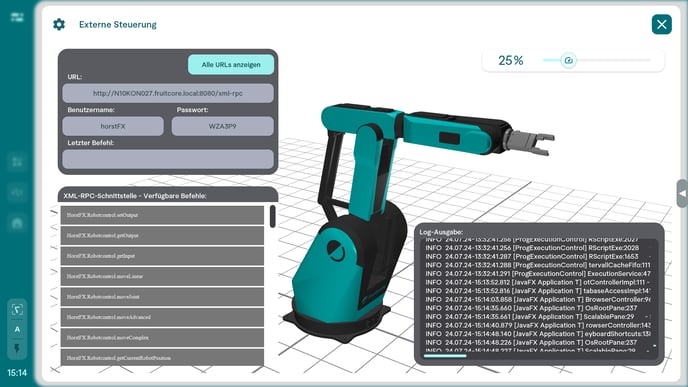
In the “External Control” app, you can control your robot via an externally executed script. Programming is done via an XML-RPC interface. Further information can be found on the following pages:
Primary interface XML-RPC
Documentation Views
Documentation Popups
1.3.4 Internet Browser**
This allows you to connect to the internet without having to leave or minimize horstOS.
1.4 Screen lock
It is now possible to activate a screen lock using the button with the lock symbol in the navigation bar. The active lock is indicated by a red border around the main area.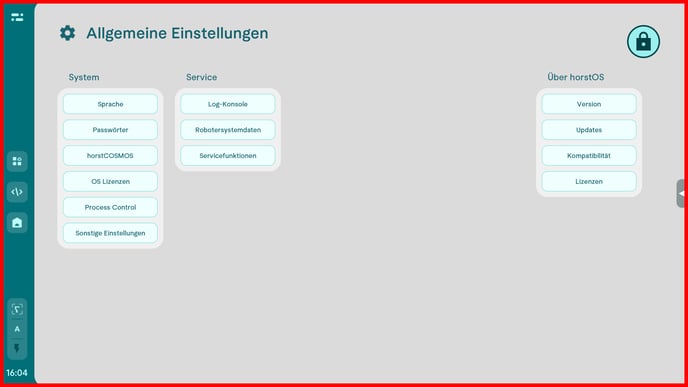
Another click on the lock symbol in the top right corner will cancel the lock. This allows the control panel to be cleaned, for example, without the risk of accidentally canceling the program.
1.5 Shutting down horstOS
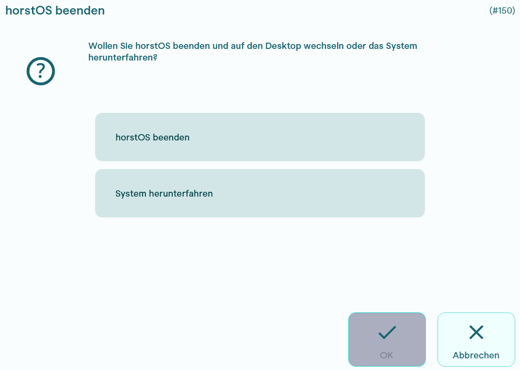
The Shut down horstOS button can either close the application (Shut down horstOS) or shut down the entire system.
2 Project areas
In the middle of the navigation bar, you can choose between the three areas (Project Setup, Program generation, Process Control) of a project. The currently selected area is always highlighted.
3 System control
The system control is located at the bottom of the screen and displays the robot status, the currently set operating mode (T1, T2 or automatic) and any error messages.