Import/export files into/from Control
General procedure
Insert the USB stick into the Control USB port
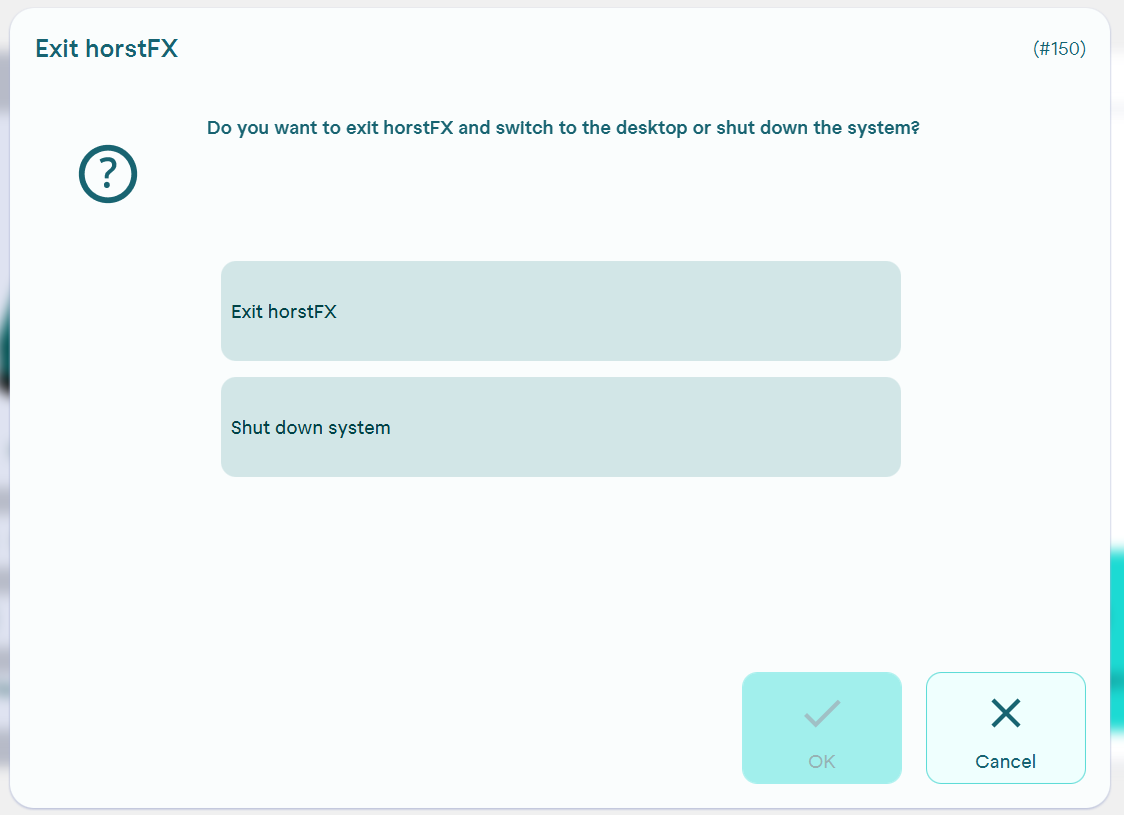
Exit horstFX via the control panel
Open File Manager
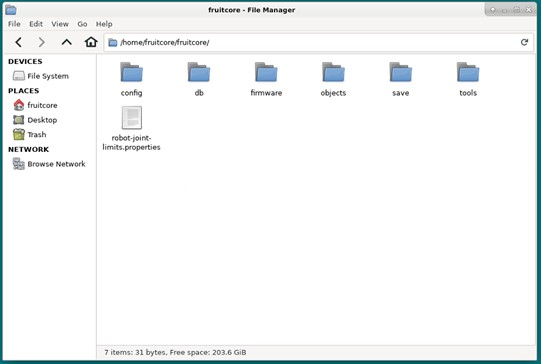
Select the "fruitcore" folder
Save corresponding file in folder (import) // Copy files from corresponding folders to USB stick (export)
Procedure in detail
1) Insert the USB stick into the control cabinet
2) Exit horstFX
**
3) Open File Manager
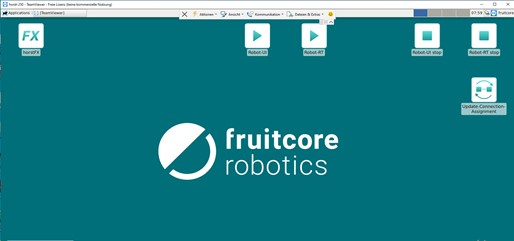
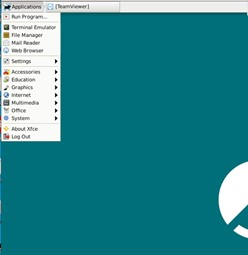
4) Select fruitcore folder
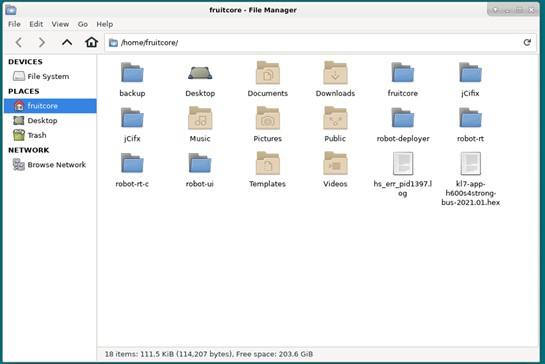
5) Save the corresponding file in the folder.
Robot programmes can be stored in the save folder. To do this, simply copy the relevant file from the USB stick and save it there. If programmes are to be exported from the control cabinet, this can also be copied from the save folder to the USB stick. After inserting the USB stick, it appears on the left in the overview.
In the objects folder: Object files such as machine layouts can be stored here as stl files (see Importing and creating 3D objects)
In the tools folder: CAD files for grippers can be saved here as stl files (see Importing and creating 3D objects)