
Loading licenses onto the HORST robot system
1. Introduction
There are two ways to load licenses onto the HORST robot system, depending on whether the robot system is connected to the internet or not.
In addition, the procedure for horstOS and horstFX differs.
2. horstOS
2.1. Robot system is connected to the internet
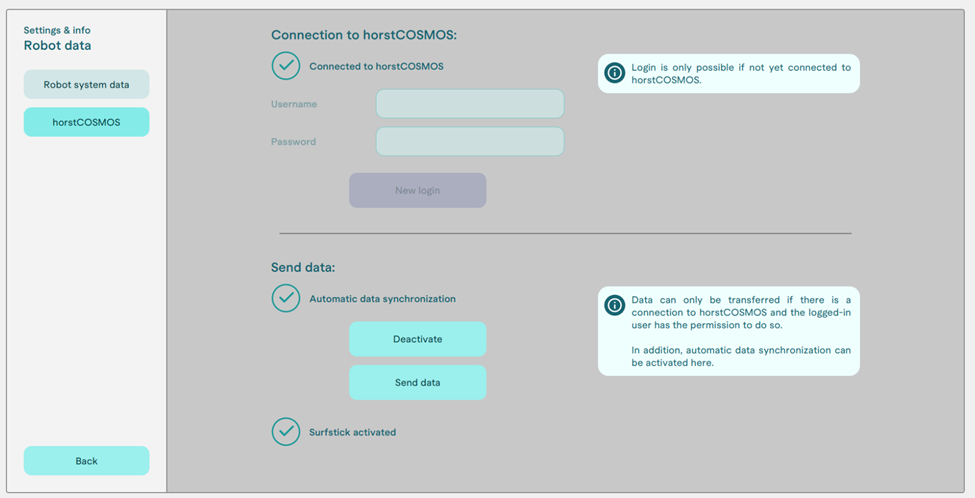
If the robot system is permanently connected to the internet or temporarily connected for license loading purposes, the licenses will be downloaded automatically.
2.2. Robot system is not connected to the internet
- Step: Determine the horstOS-ID on the robot system
 2. Step: Retrieve the license file from horstCOSMOS
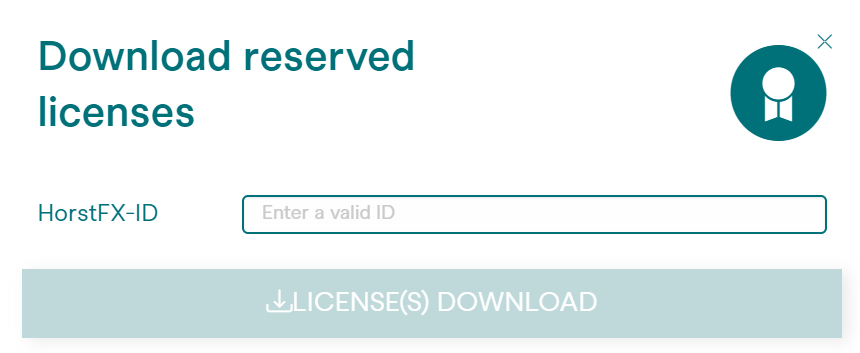
To do this, select the corresponding robot in the robot overview and click on "Download licenses".
- Step: Enter the correct horstFX-ID/horstOS-ID of the robot
- Step: Save the license file on a USB stick
Insert the USB stick into CONTROL
- Step: Reading the license file on the robot
After clicking on "Read license file," the File Browser will open. Here, you can select the inserted USB stick and the license file saved on it.

3. horstFX
3.1 Robot system is connected to the internet
If the robot system is permanently connected to the internet or temporarily connected for license loading purposes, the licenses will be downloaded automatically.
You can check the network status by clicking on the icon located at the top right corner of the Linus interface. To exit the horstFX, use the exit button. Alternatively, you can navigate to the desktop using the keyboard shortcut  +
 .
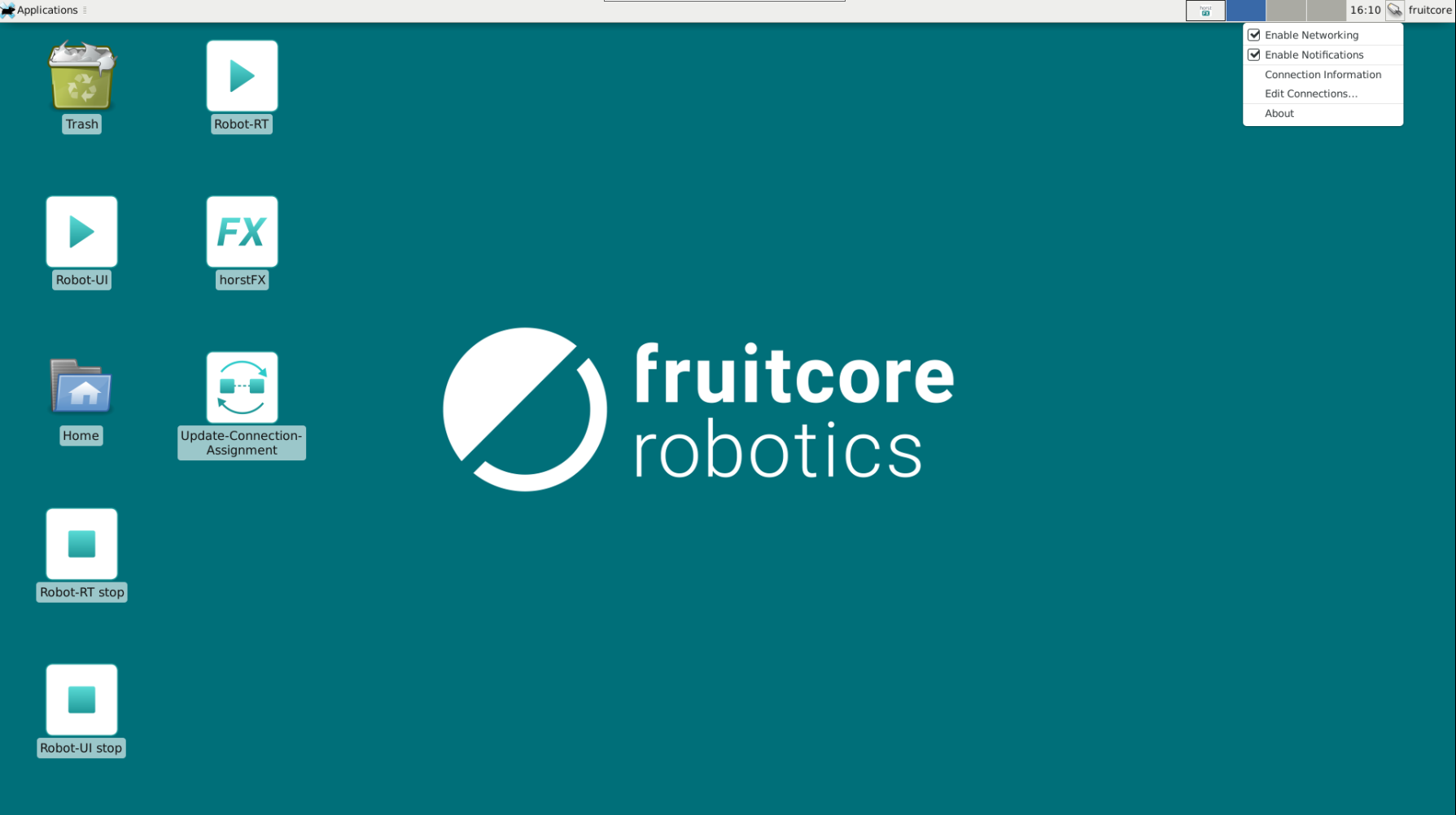
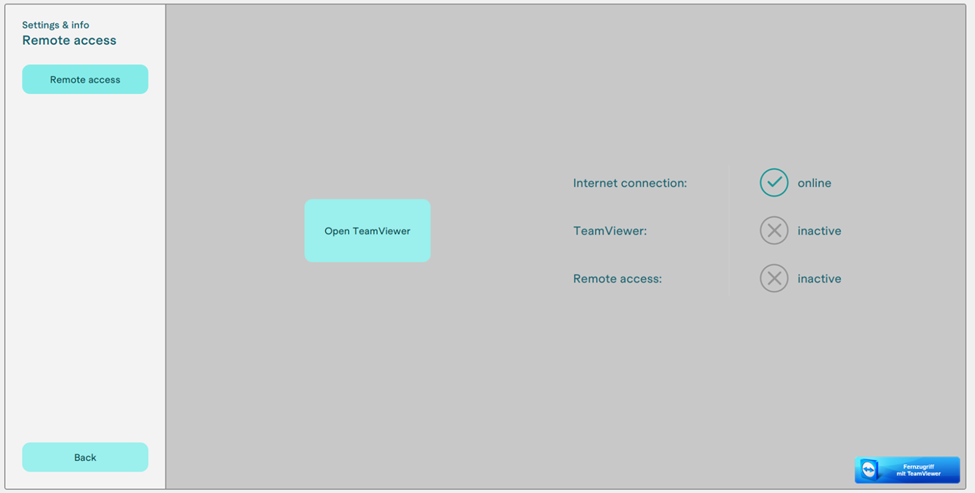
In "Service/Remote access" you can also check whether the robot is connected to the Internet; this is necessary so that the licenses can be retrieved. Also you can check if the connection to horstCOSMOS is established.
3.2. Robot system is not connected to the internet
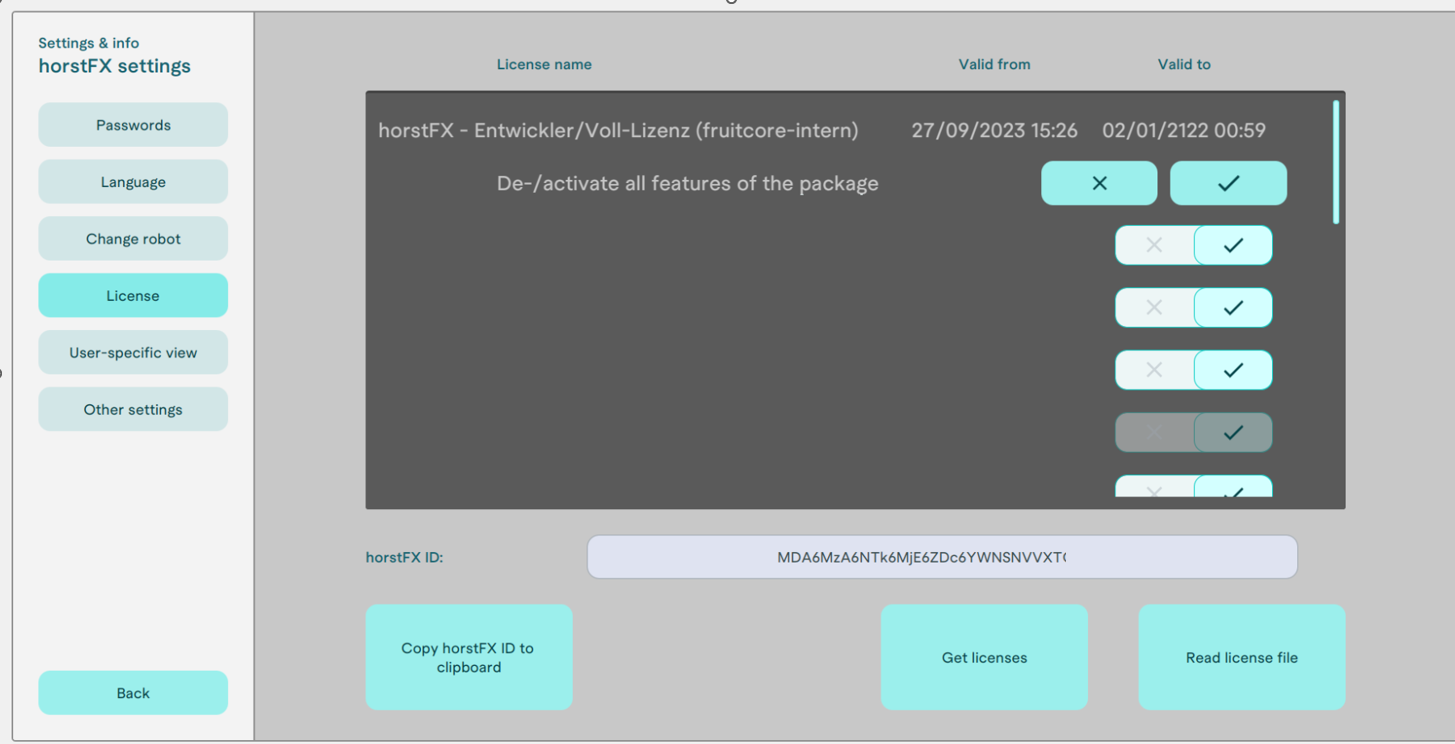
- Step: Determine the horstFX-ID on the robot system
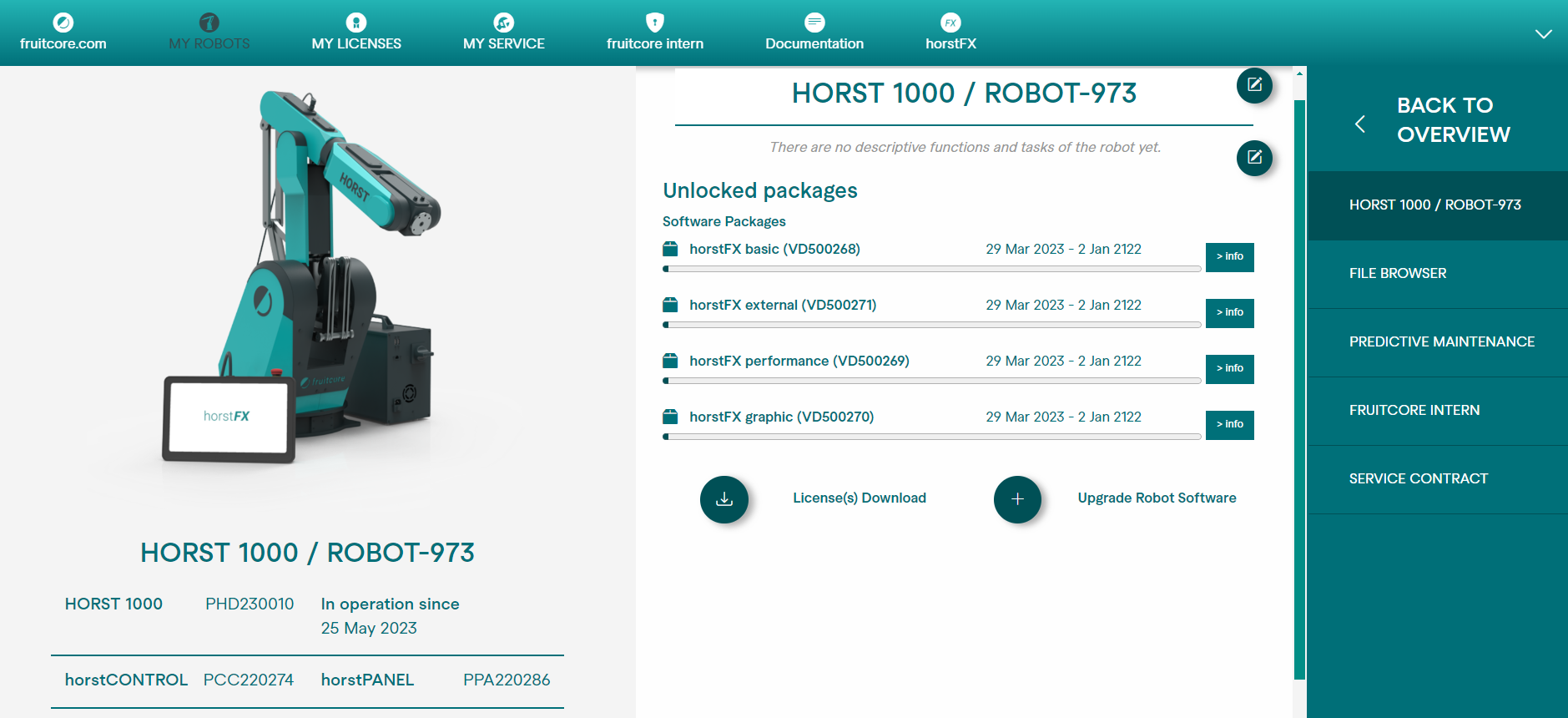
2. Step: Retrieve the license file from horstCOSMOS
To do this, select the corresponding robot in the robot overview and click on "Download licenses".

- Step: Enter the correct horstFX-ID of the robot
- Step: Save the license file on a USB stick
Insert the USB stick into CONTROL
- Step: Reading the license file on the robot
After clicking on "Read license file," the File Browser will open. Here, you can select the inserted USB stick and the license file saved on it.
