
horstOS overview
horstOS guides you through three project phases: setup, programming and process control. The navigation bar connects these work areas with system-wide functions.
Logical structure

The three areas are Project Setup, Program generation and Process Control. The highlighted symbol on the left side of the screen identifies the open area.
Phase 1: Project Setup
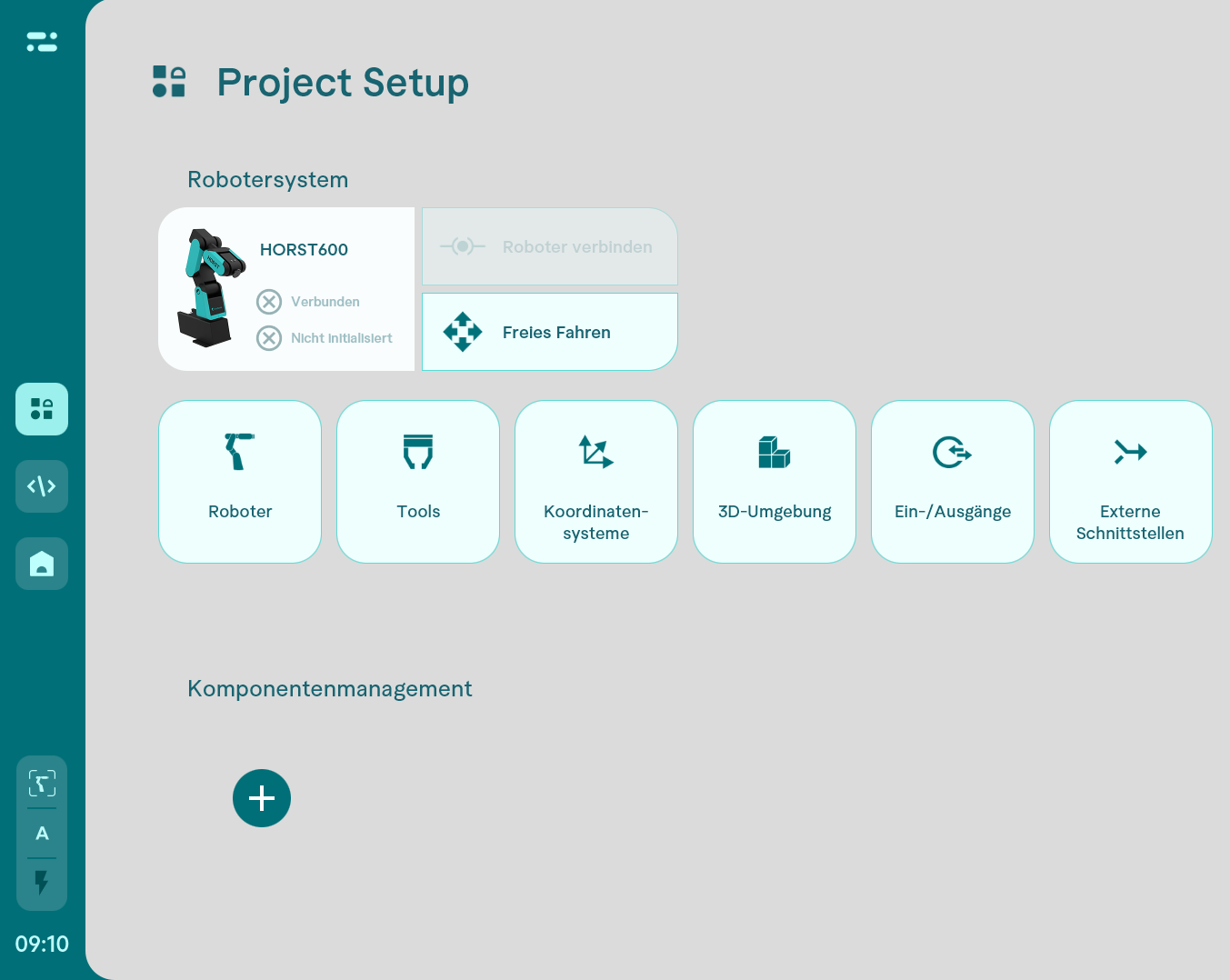
Project Setup contains the settings for a project. They form the basis for subsequent programming:
- Robot-specific settings.
- Tools, coordinate systems and working environment.
- Digital inputs and outputs and external interfaces.
- Peripheral devices such as cameras and safety equipment, whose web interfaces can be integrated through component management.
Phase 2: Programming
The robot program is created in Program generation. See the introduction to program creation for the starting point.
Phase 3: Process Control
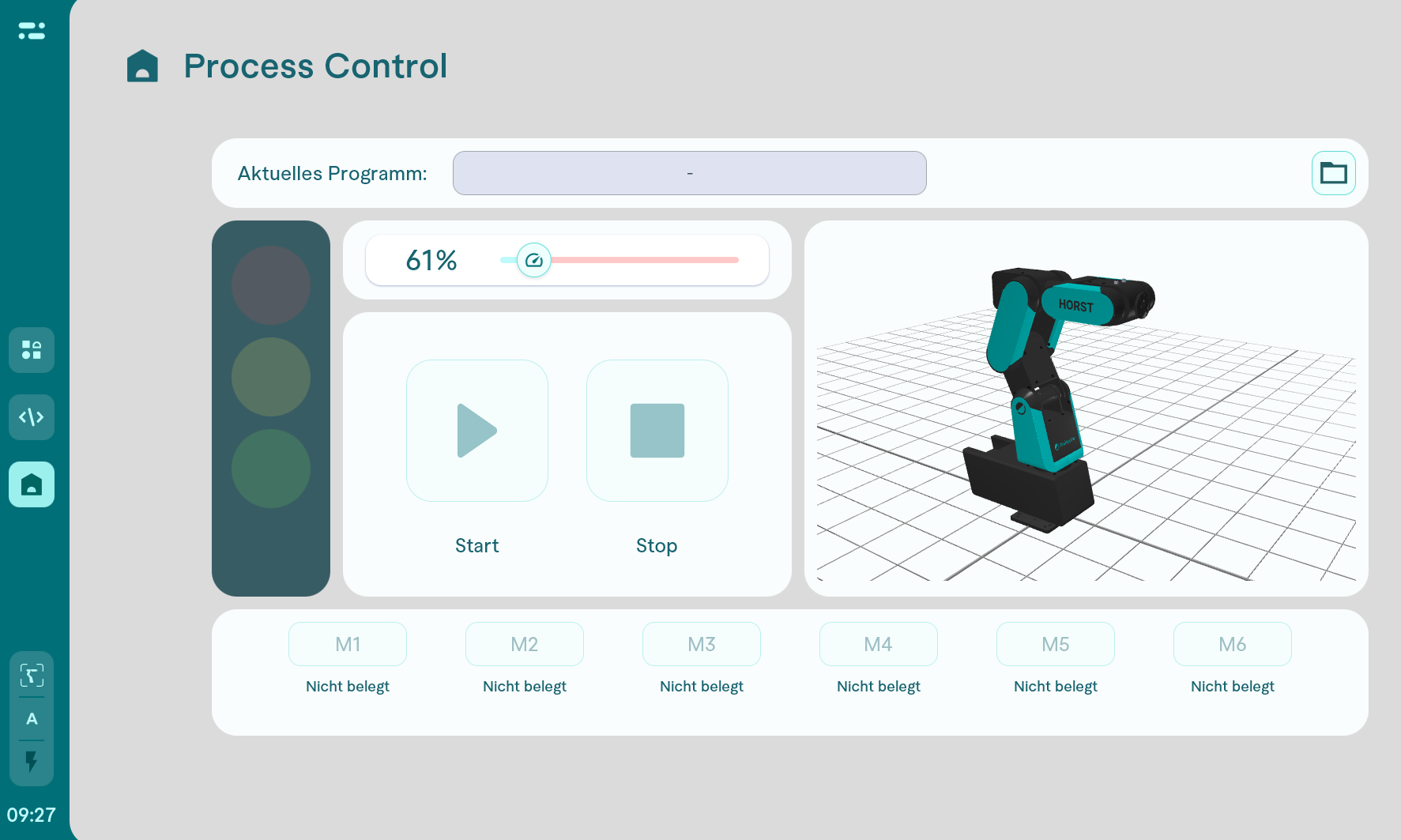
Process Control provides a customisable operating view for production. It displays the information and functions needed to control and monitor the application.
Navigation
The navigation bar is on the left side of the screen. Use its central section to switch between the three work areas. The other functions remain accessible from every area.
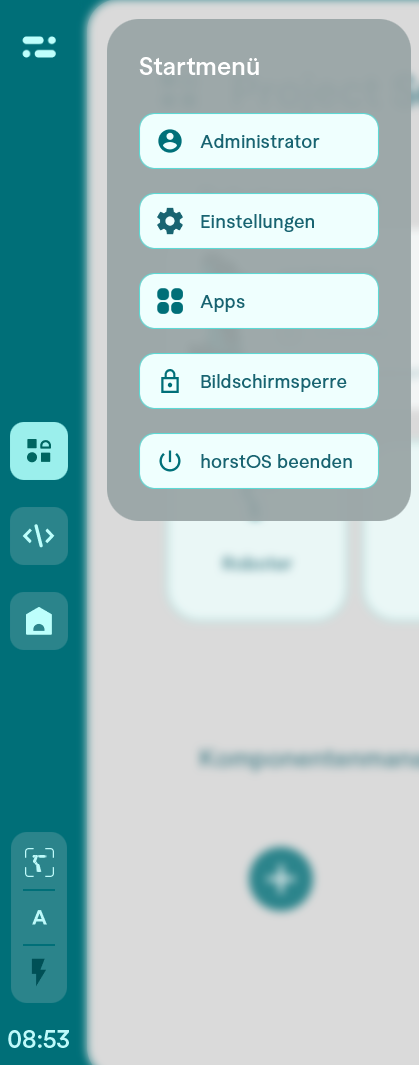
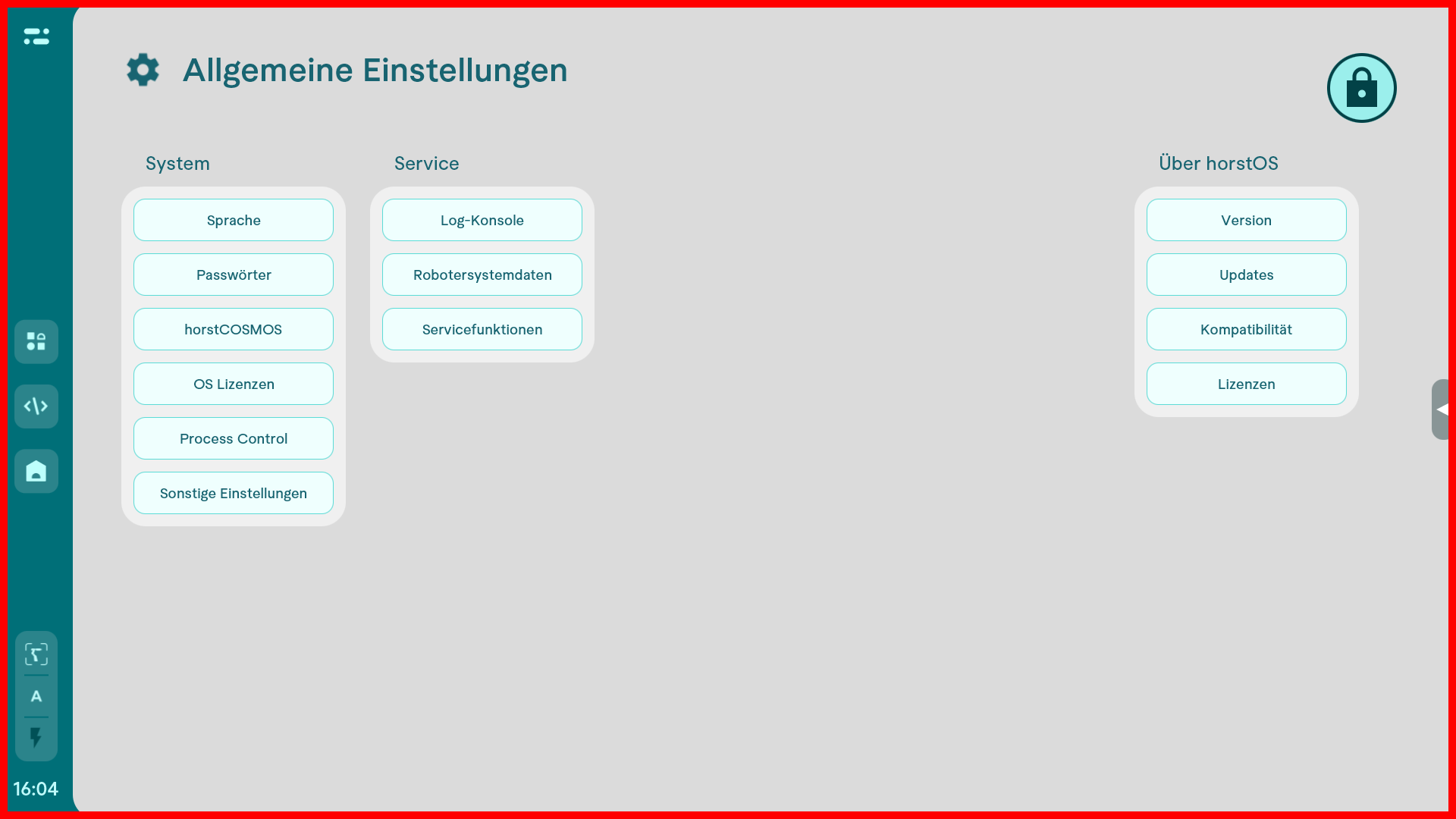
The start menu provides access to the user role, general settings and apps. You can also activate the screen lock or close horstOS. The bottom-left area displays the time, error messages and operating mode. It also indicates whether the robot is active; the associated symbol switches to simulation mode.
Start menu
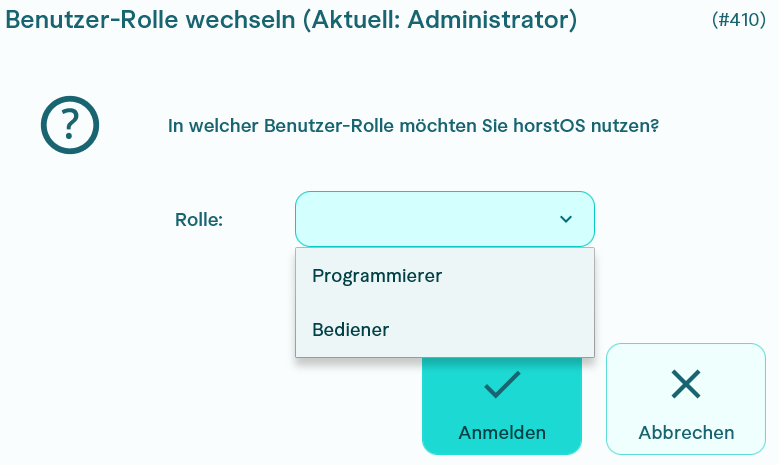
User role: The person symbol displays the active user role. Select this symbol to change the role; changing it within the program is not possible.
General settings: Settings are divided into System, Service and horstOS.
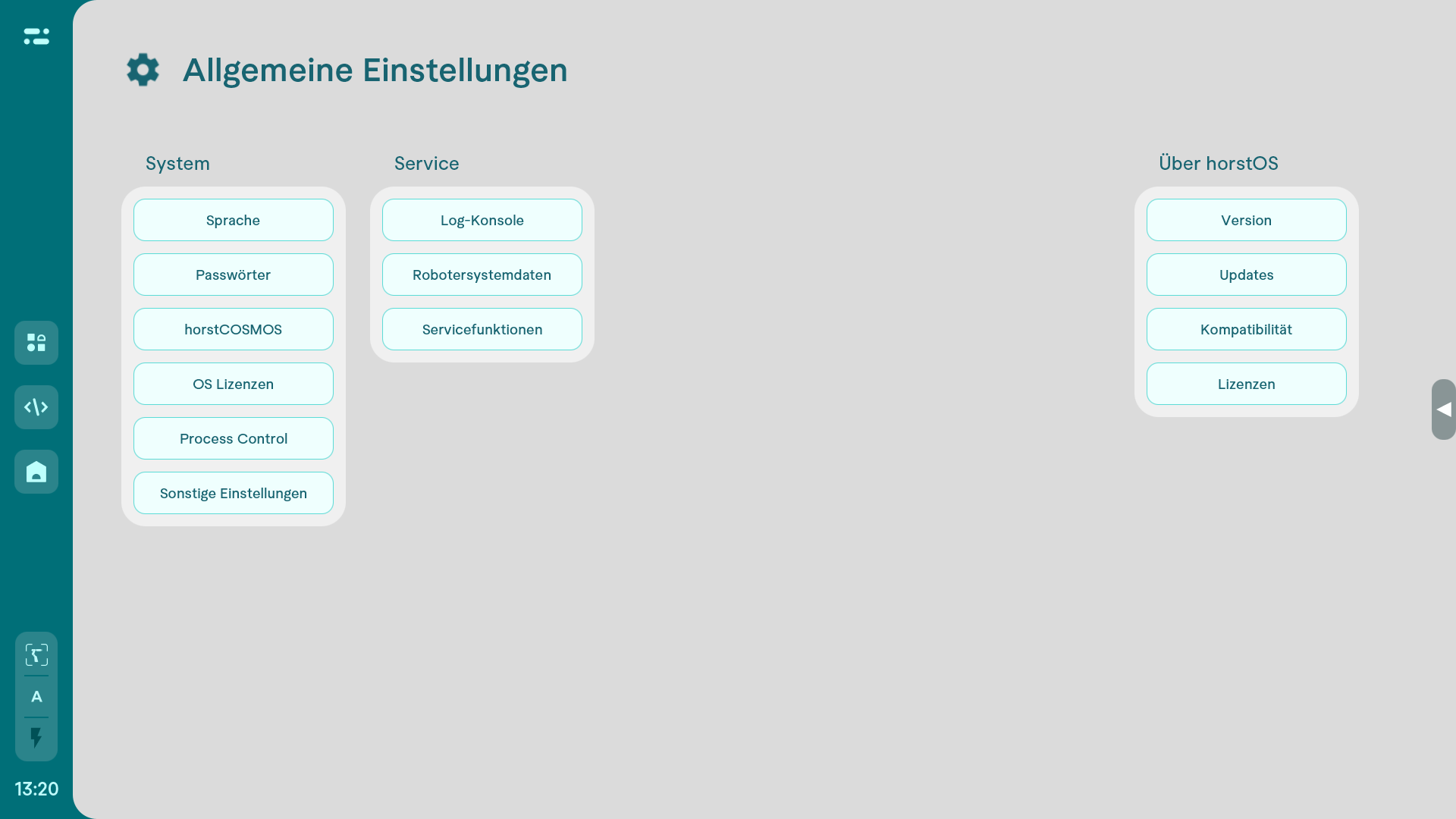
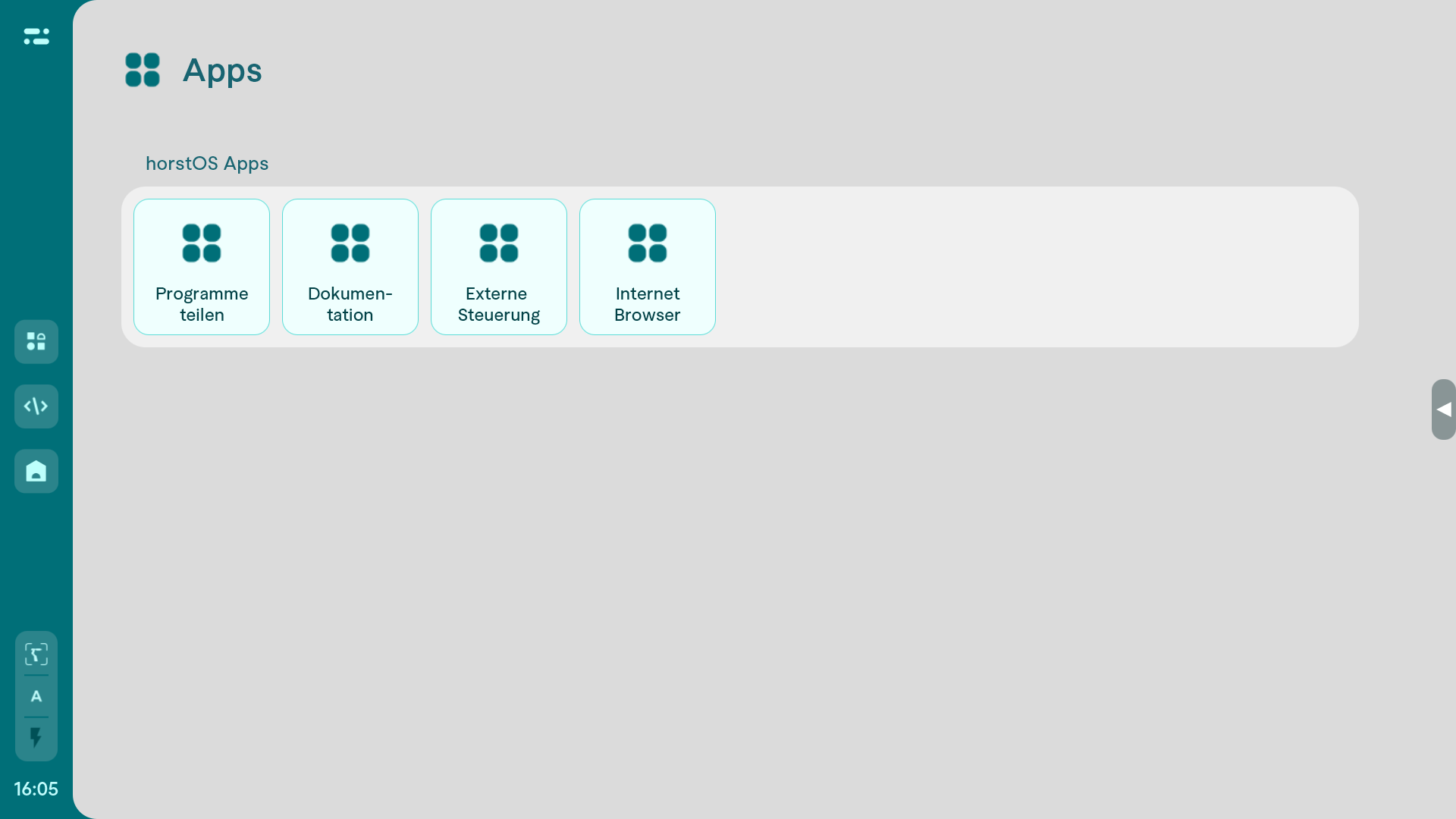
Apps: Apps provide direct access to additional functions and applications.
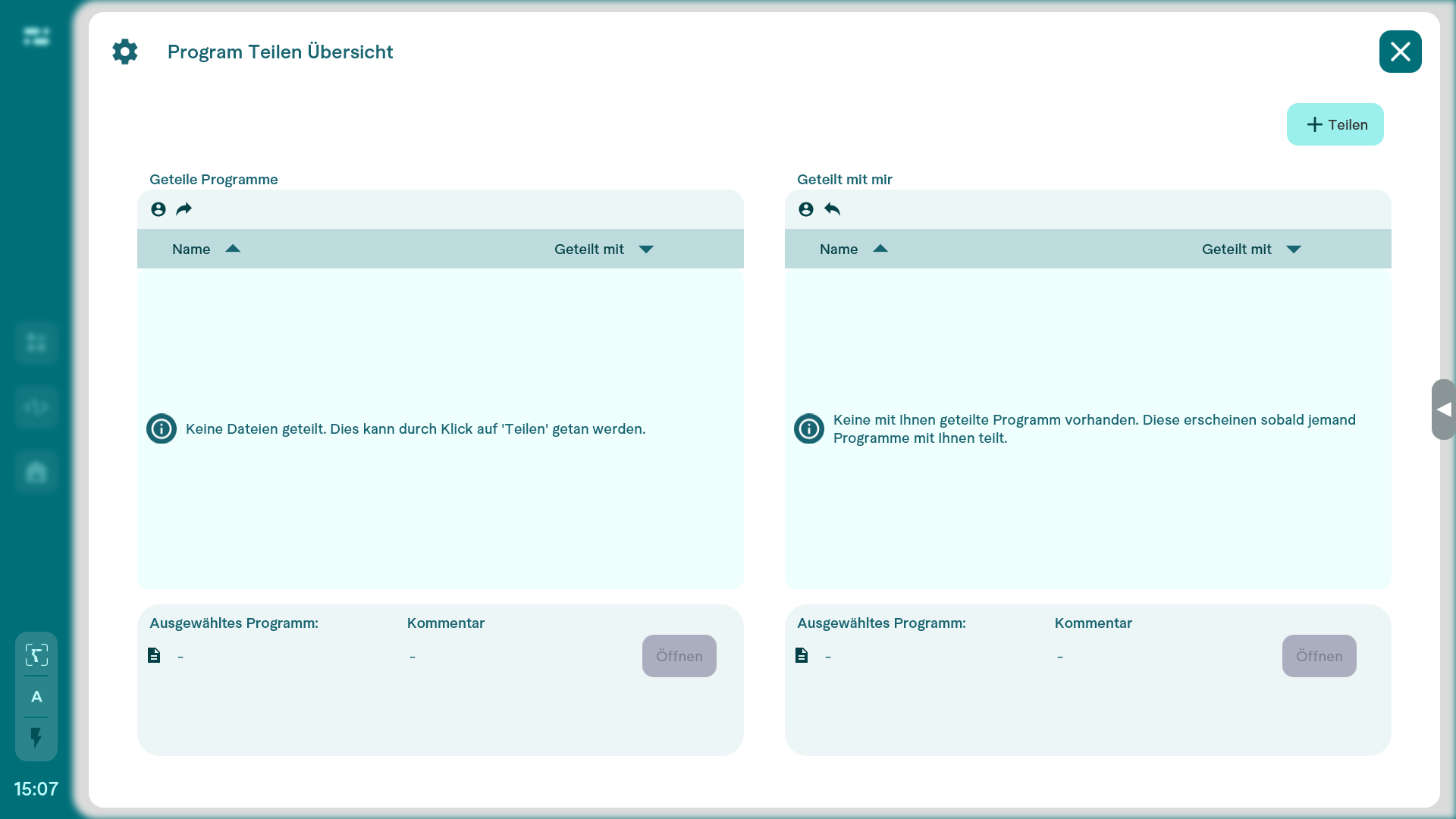
Sharing programs: This app transfers programs with their configuration files, such as tools, the 3D world and coordinate systems. Transfers are possible between simulation software and the real robot system, and between horstCOSMOS users in the same company. Alternatively, select +Share at the top right and enter a recipient's email address.
Documentation: This app opens the available fruitcore documentation online or offline, including the horstOS instructions.
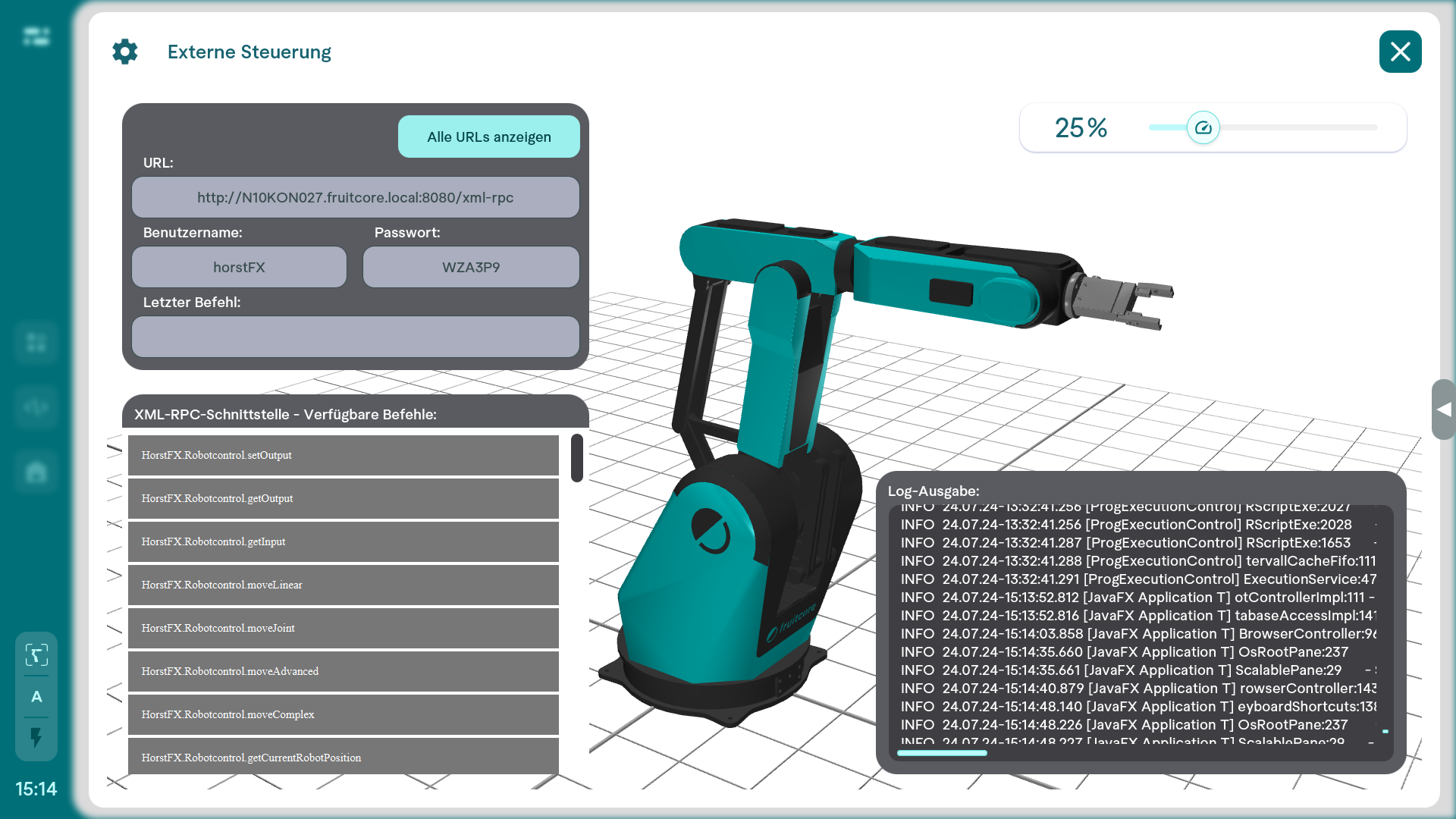
External Control: This app allows the robot to be controlled through the XML-RPC interface.
Internet Browser: This app opens the web browser.
Screen lock
The lock symbol in the menu bar activates the screen lock. A red border around the main area indicates that the lock is active. Select the lock symbol at the top right again to release it. This allows the operating panel to be cleaned, for example, without accidentally entering a program command.
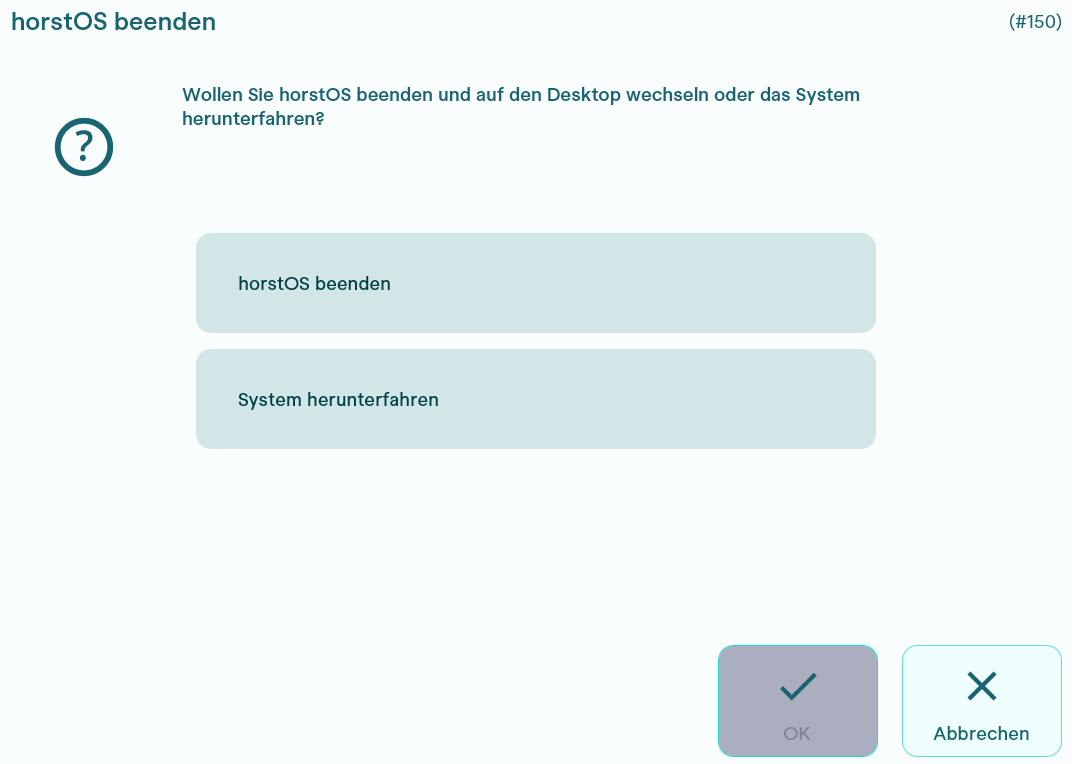
Close horstOS
Use Exit horstOS to close the application or shut down the entire system.
System control
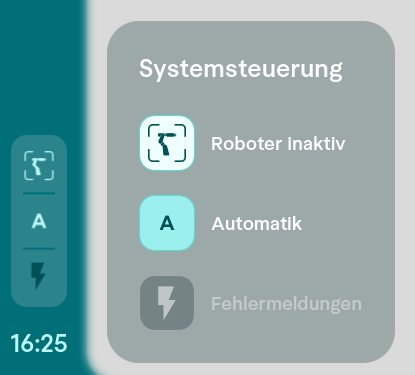
System control at the bottom of the screen displays the robot status, the operating mode T1, T2 or Automatic, and any error messages.
AI Copilot
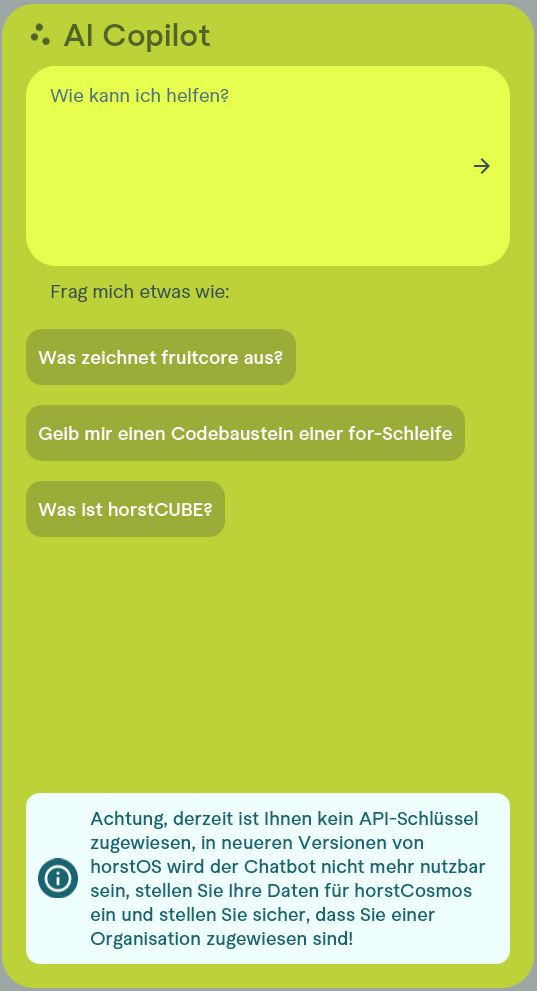
The AI Copilot is a ChatGPT-based chatbot that supports questions about horstOS. Enter a question in the input field. Use the feedback function to rate its answer.
The symbol on the right side of the screen opens the AI Copilot:

See the AI Copilot feature overview for more information.