
Collect Logs
This article is valid for all horstOS versions as well as horstFX.
Required materials: USB flash drive
Collect Logs in horstOS
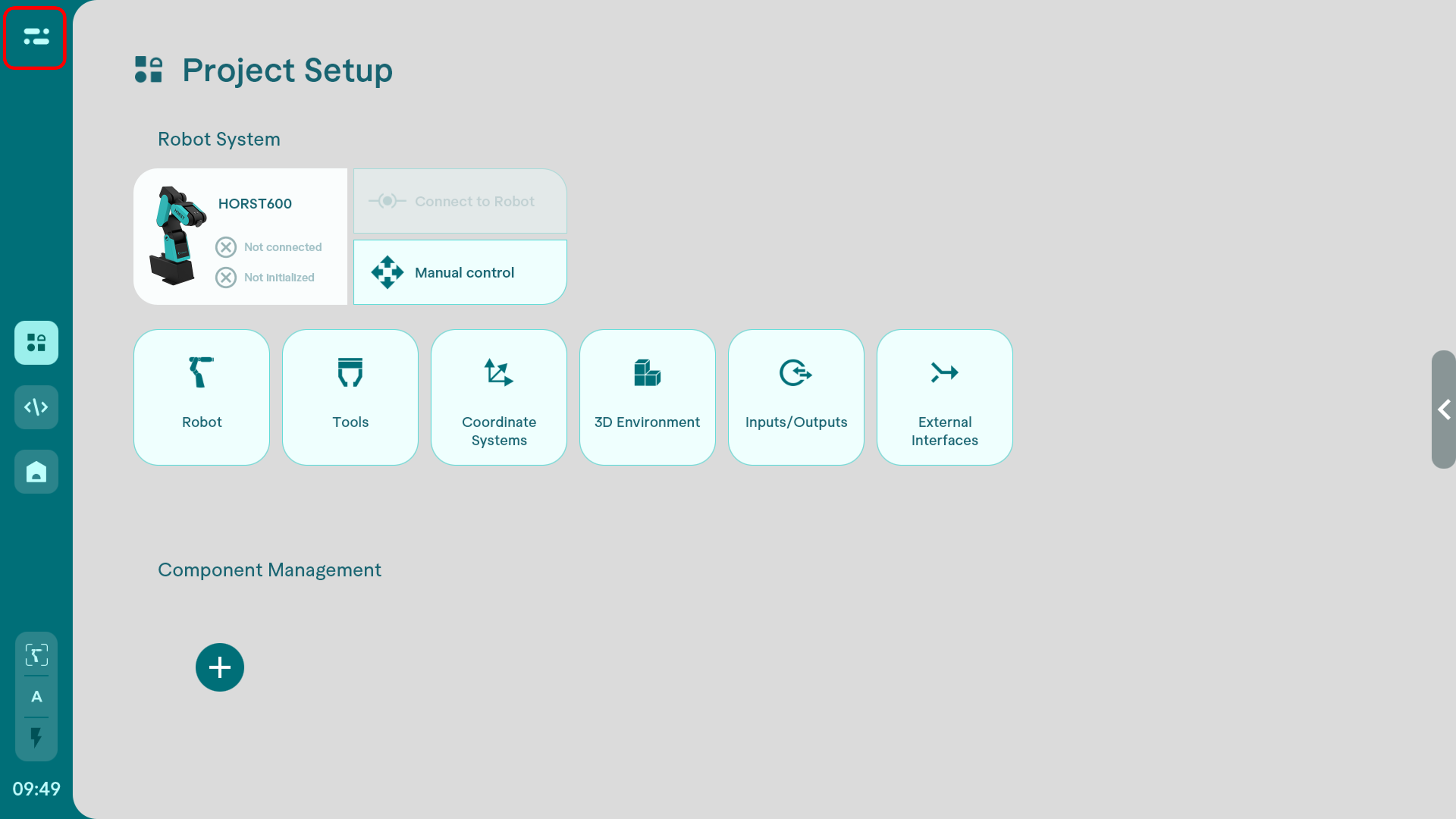
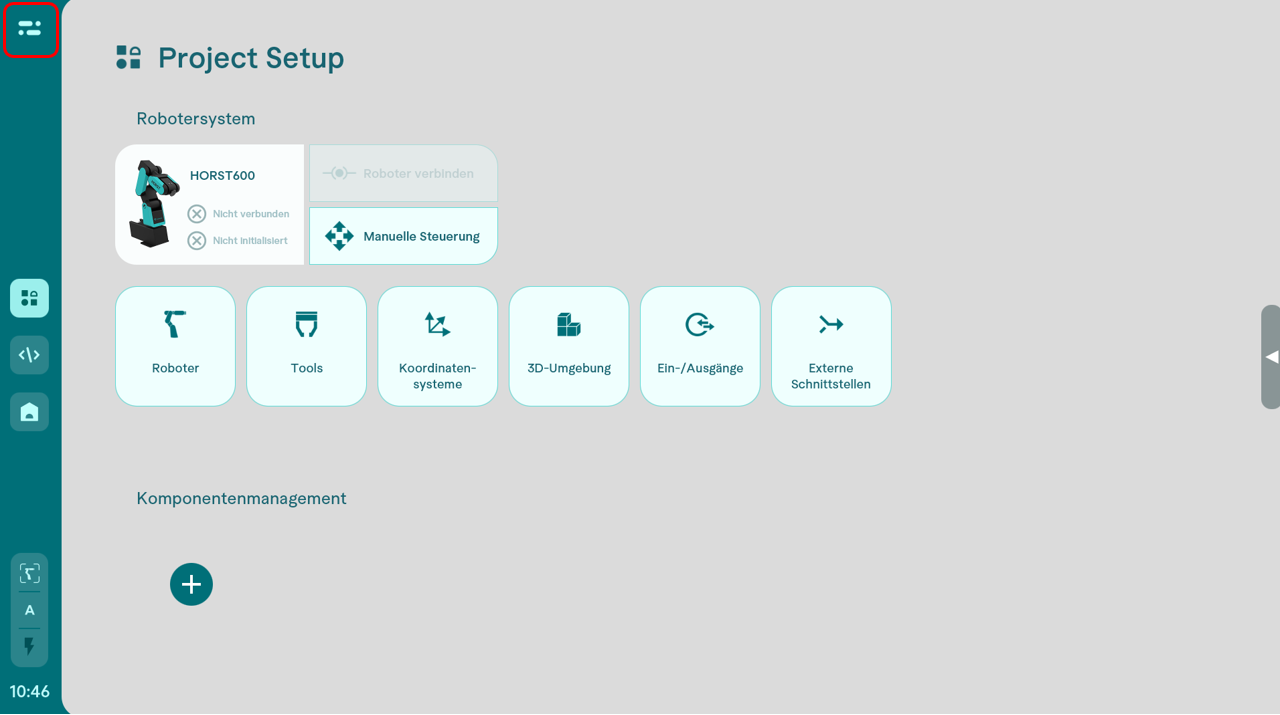
- Navigate to the Project Setup menu located in the top left corner.
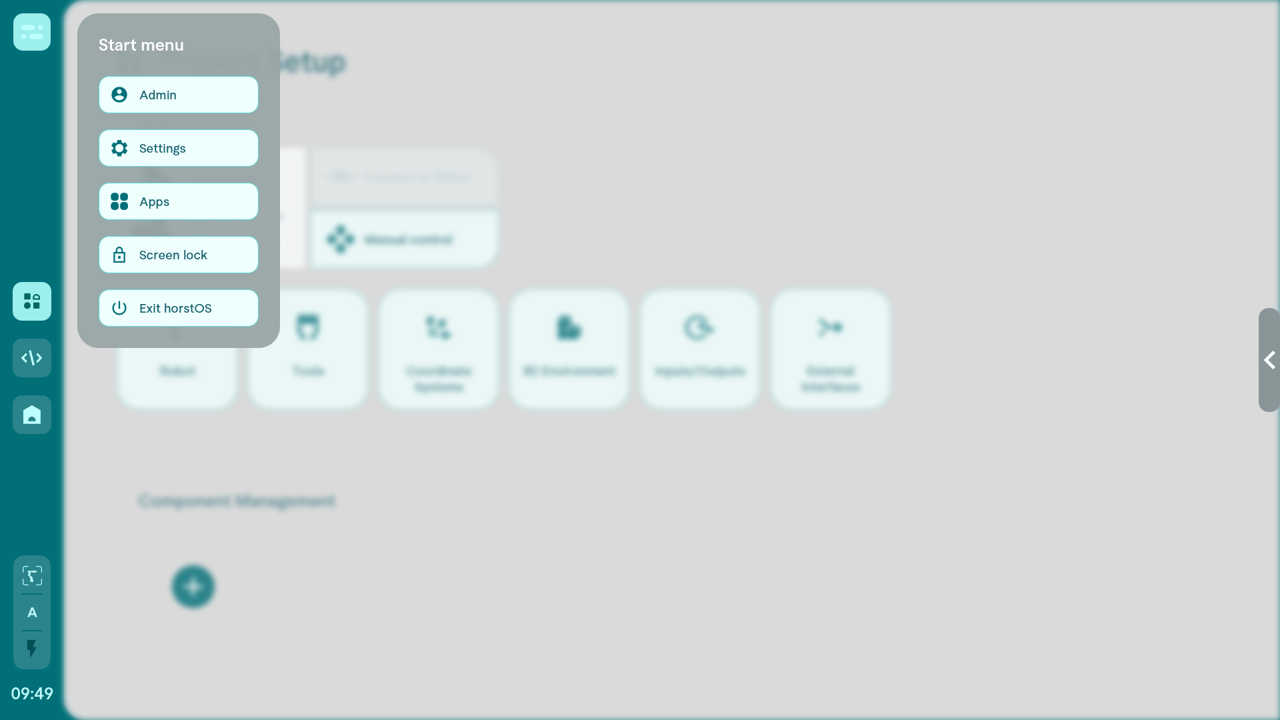
- Click on "Settings", which will then open the window for general settings.
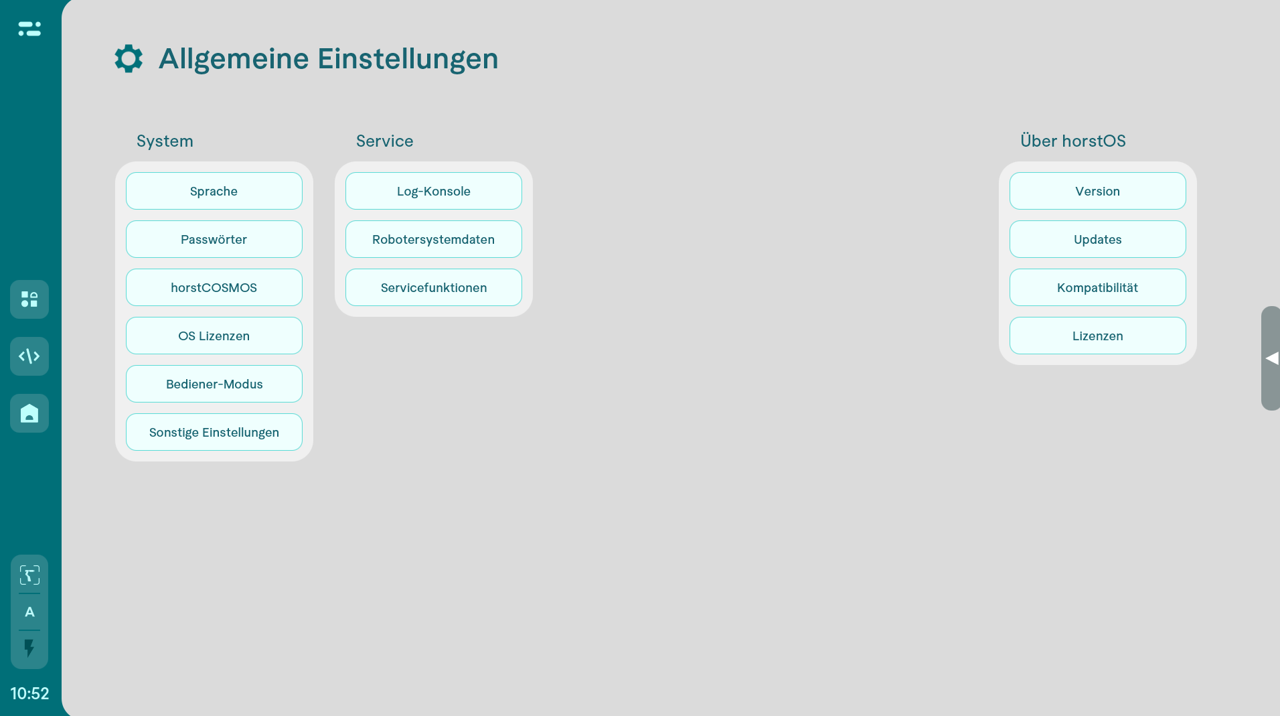
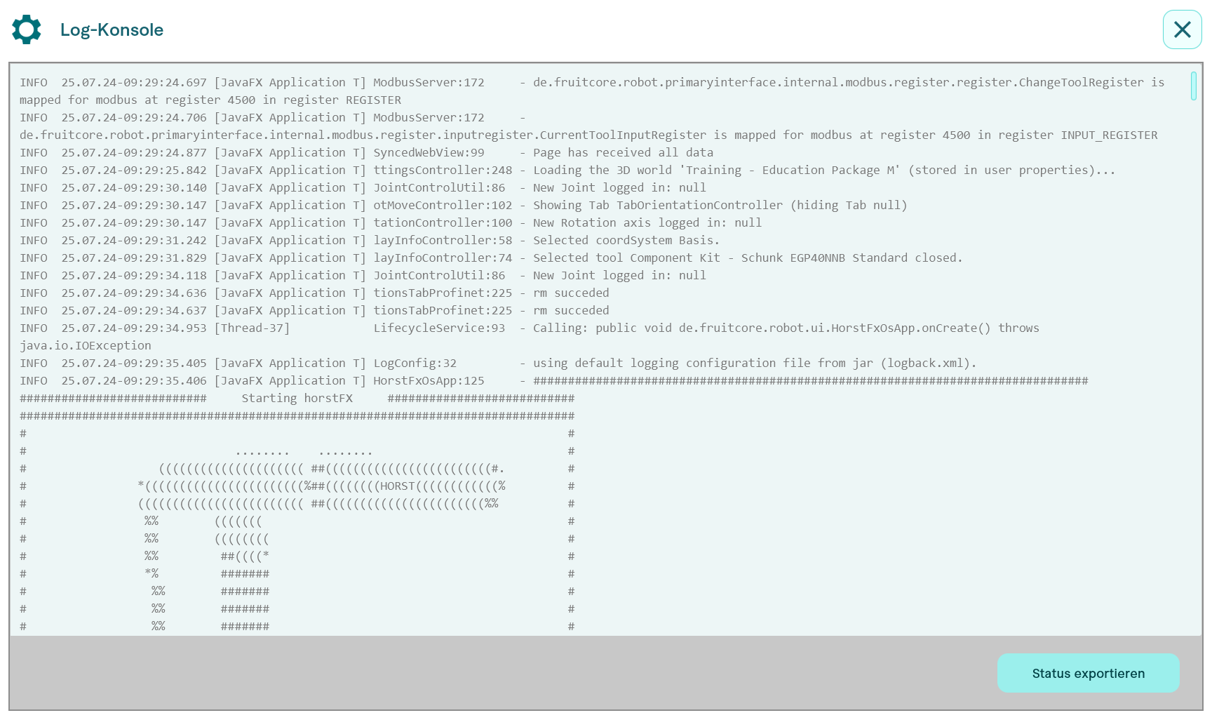
- Next, click on "Log Console".
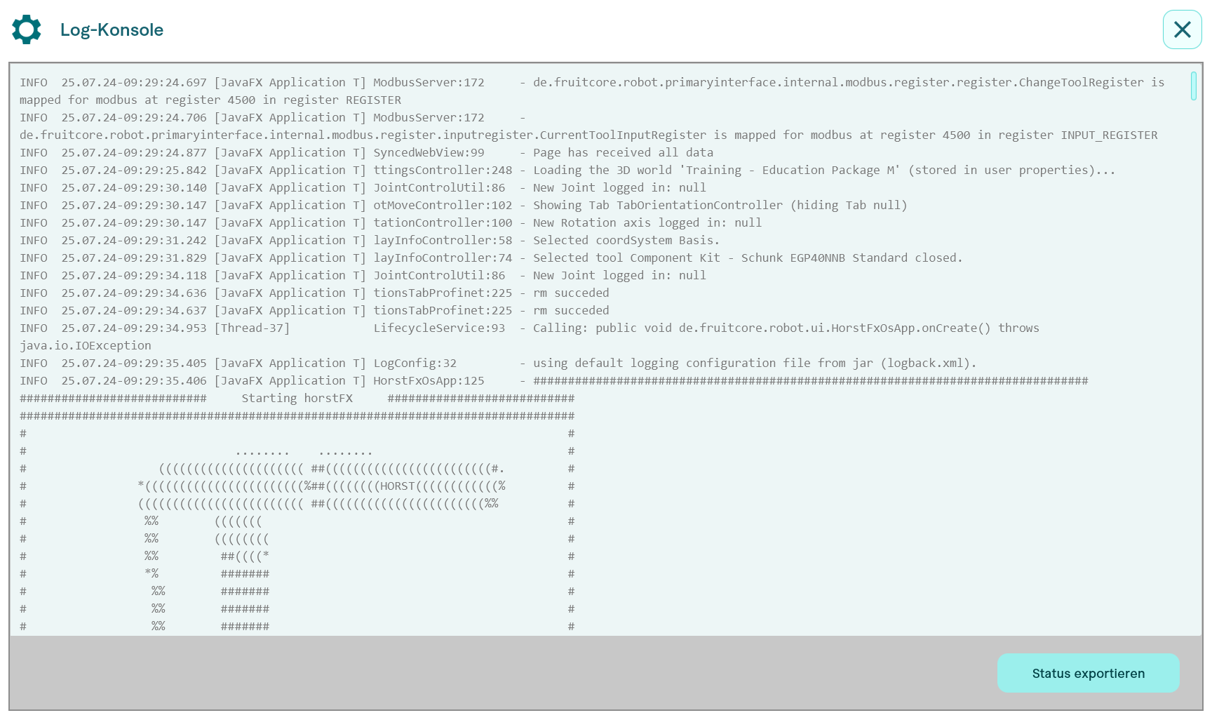
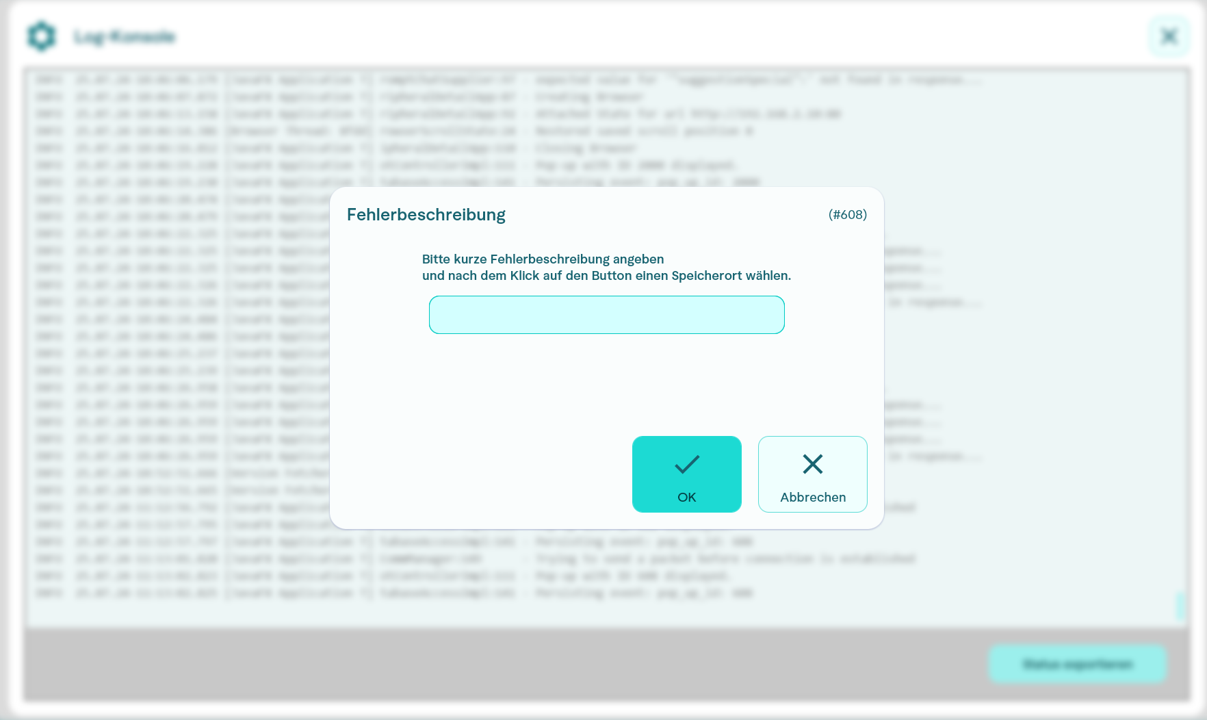
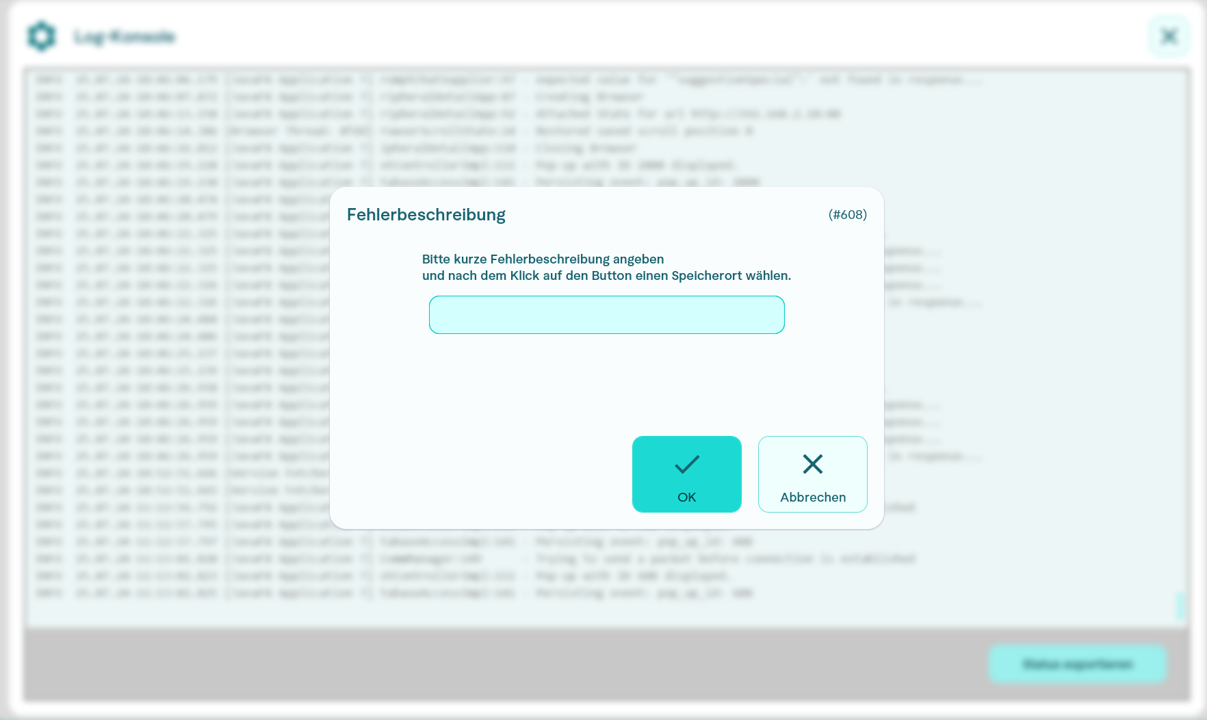
- Enter a brief description of the error.
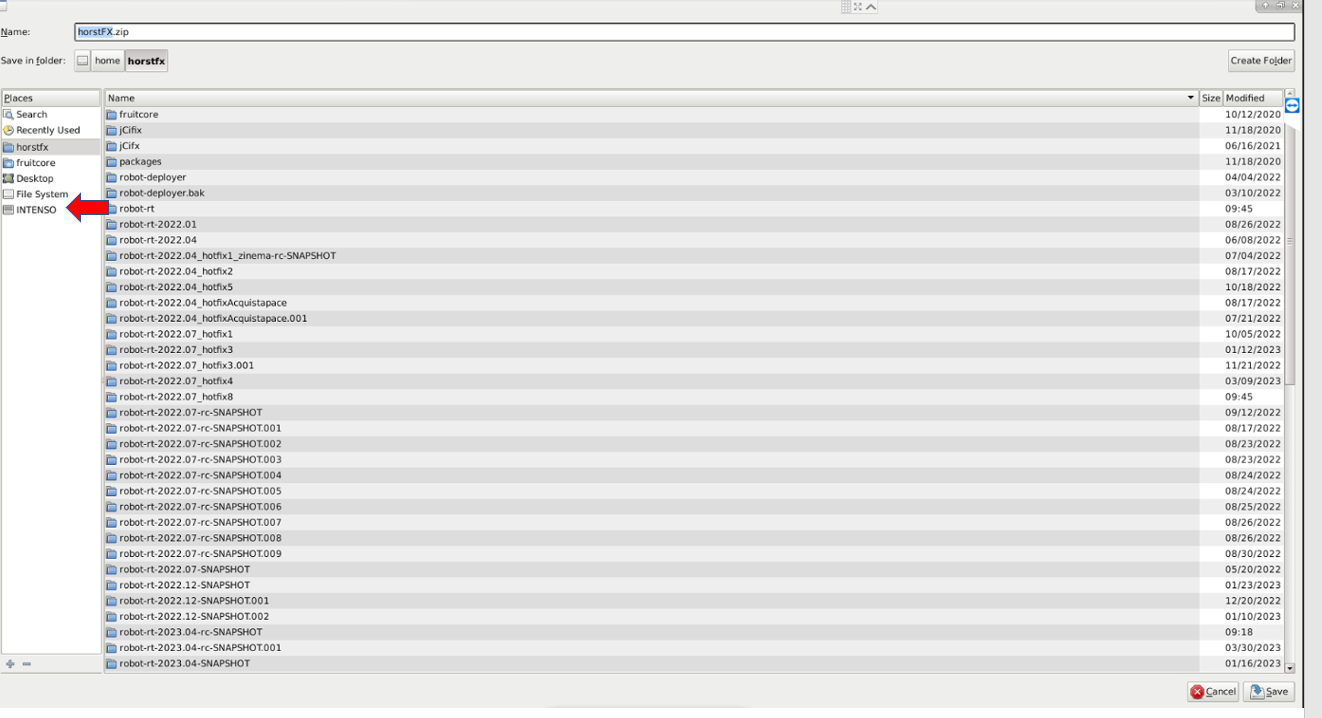
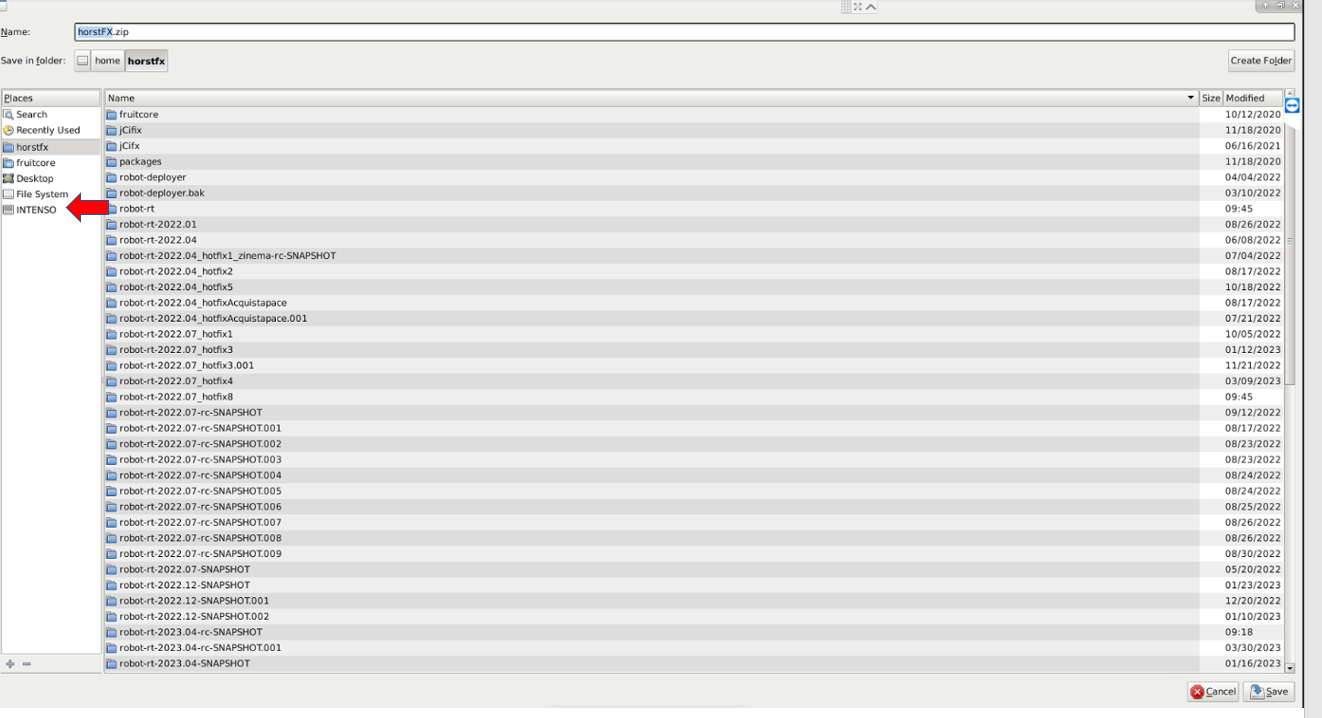
- Choose your storage device and export the file.
Collect Logs in horstFX
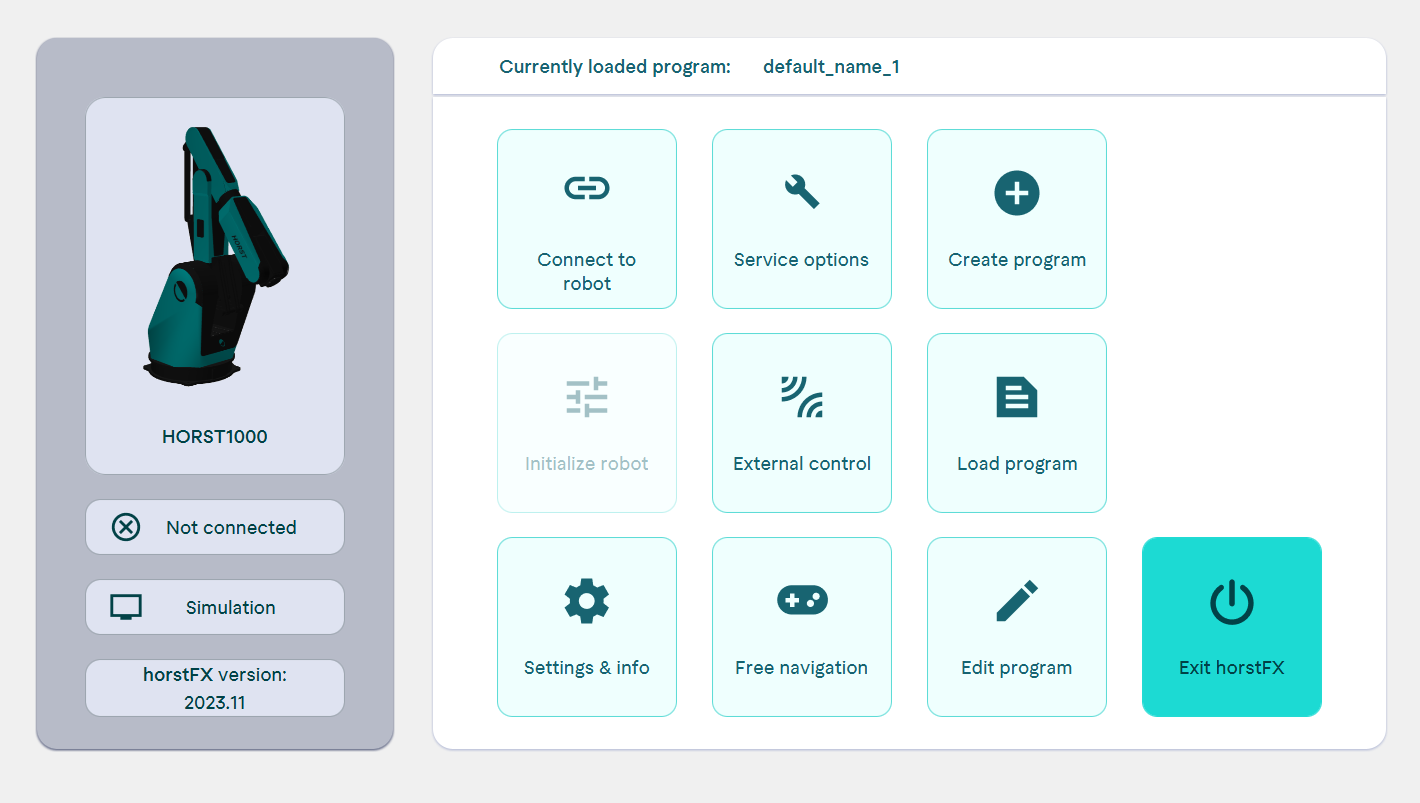
- Navigate to the "Settings & Info" button in the main menu and insert the USB flash drive into the CONTROL.
- Click on "horstFX info"
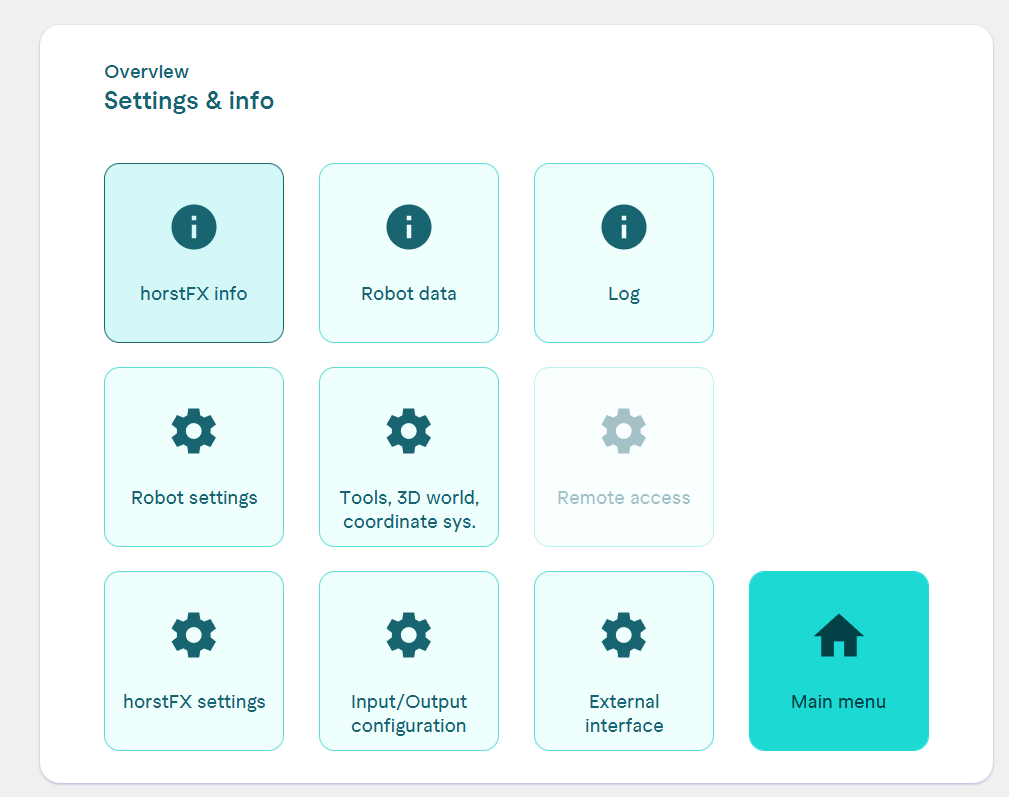
- Click on "Collect Logs".
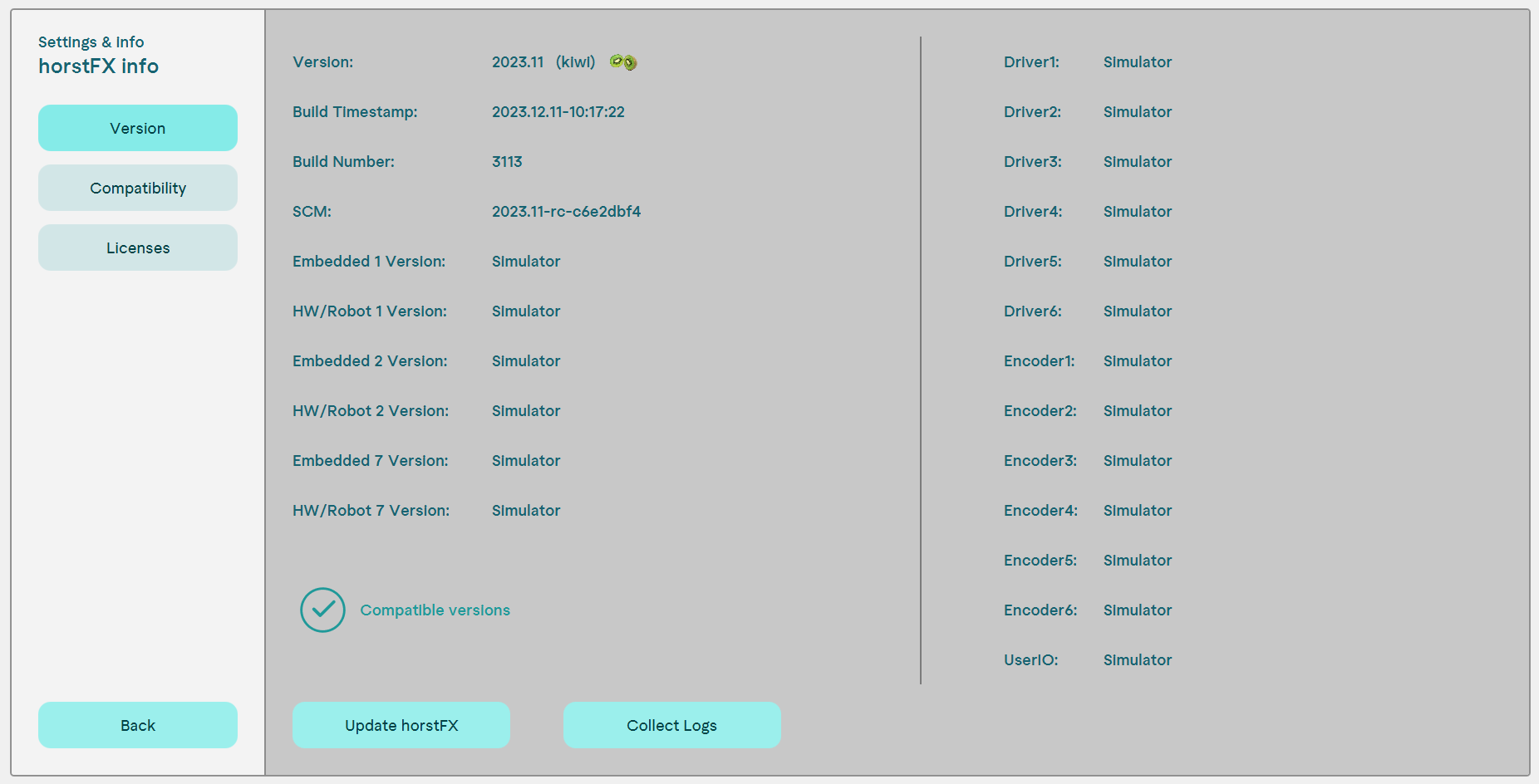
- Enter a short error description.
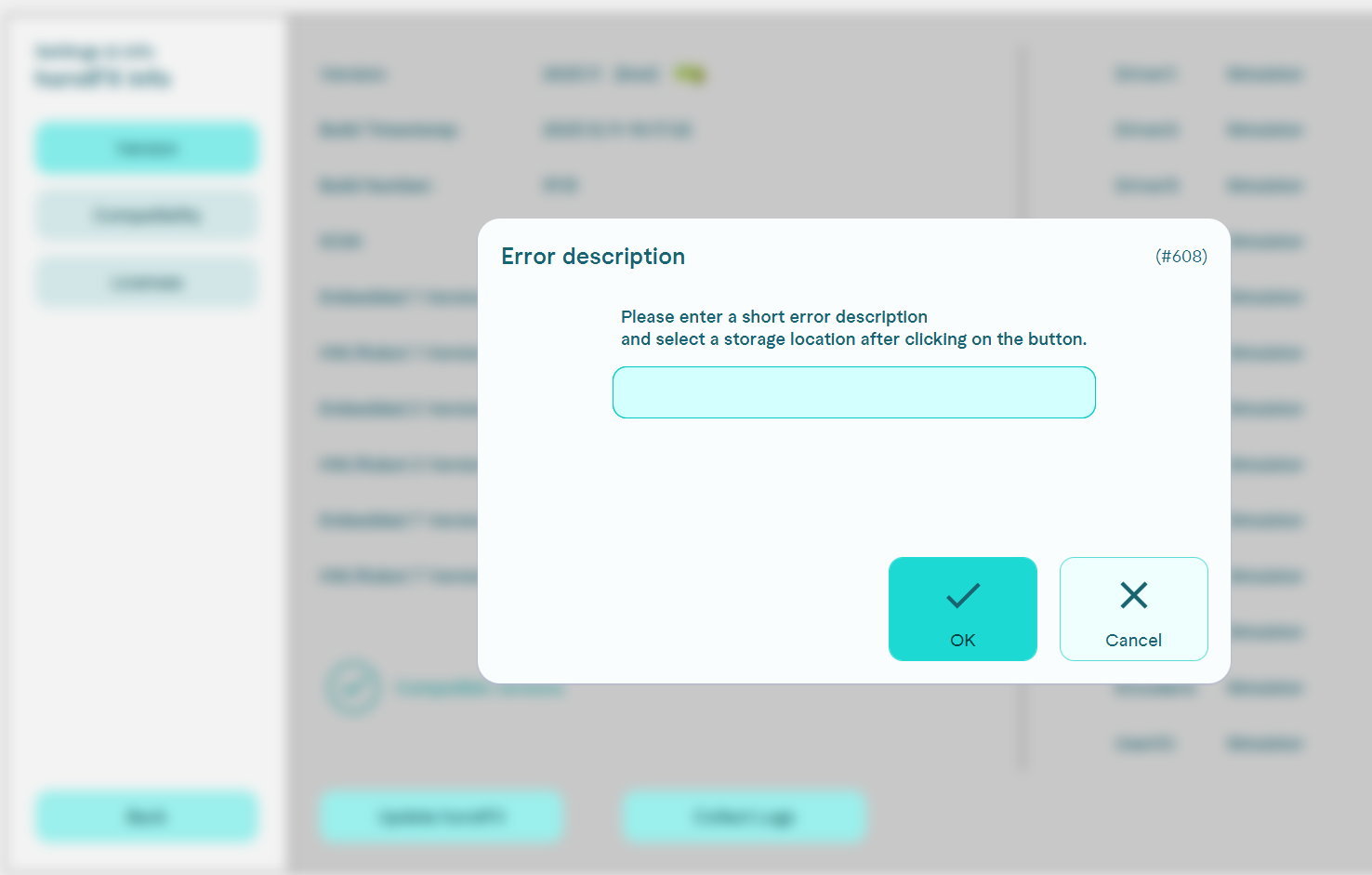
- Choose your storage device and export the file.