
INSPEKTO S70
The INSPEKTO S70 is a fully equipped complete system for industrial visual inspection that is ready for use in less than a day.
This article is valid for all horstOS versions as well as horstFX.
1. Introduction
It combines a unique electro-optical system with the groundbreaking Autonomous Machine Vision AI (AMV-AI™) technology to provide a solution in visual quality inspection that is extremely versatile and easy to implement, adapts to changes in the production line, and does not require image processing expertise from the user. An automated visual inspection system that does not need a fault catalog.
The system allows communication through digital IOs or TCP/IP. It also supports connection to an SPS via PROFINET. For simpler inspection tasks with few diverse objects to classify, communication through digital IOs is usually sufficient. In the following sections, we will primarily focus on TCP/IP communication, as digital IO communication is straightforward. Additionally, you can find a textual and graphical example program with global functions available for download at the end of the article.
2. Version Information
Inspekto SW Version: V5.0.2
Robot Control sofware version: from 2022.07 onwards
3. System setup
Setting up the Inspekto system is clearly detailed in the accompanying documents provided by Inspekto. The software also guides users smoothly through the setup process. For TCP/IP communication, the Inspekto software requires selecting 'Connectivity TCP server'. Subsequently, the camera's IP address needs to be aligned within the same range as the robot's. This means the first 3 blocks of digits must match those of the robot, while the last block must be distinct. The robot's Control cabinet is connected to the Inspekto system's PLC network socket via a network cable.
The process of setting the IP address of the robot is detailed in the following article: Changing the IP Address.
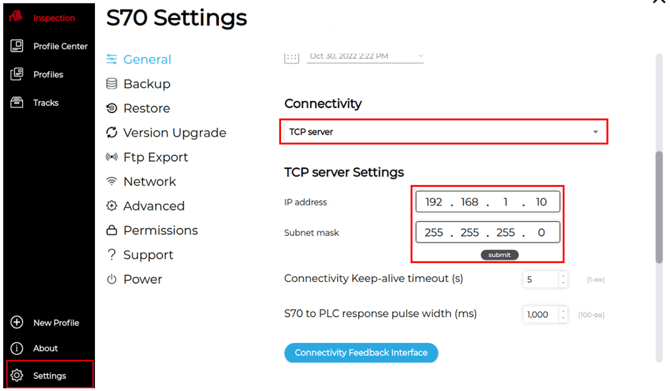
The S70 software wizard guides users smoothly through the process of setting up an inspection profile.
4. Communication via TCP/IP
The two participants communicate with each other using network sockets. More detailed information can be found under Sockets.
4.1. Establishing the Connection
The camera connection can be established using the following function in horstOS:
The camera's port is set to 2052.
Ensure that the IP address matches the configured IP address of the camera system.
// Communication
var IP_Cam = "192.168.2.10";    // IP adress camera
var Port_Cam = 2052;            // Port camera
var Socket = null;              // socket object

//Establish camera connection
connectCam();

try
{
    // Hauptprogramm
    // ...
    // ...
}
finally
{
    Socket.close();
}

// Establish connection to camera
function connectCam()
{
    showHint("Connect to camera");
    try
    {
        // Establish connection via socket
        Socket = new java.net.Socket();
        Socket.connect(new java.net.InetSocketAddress(IP_Cam, Port_Cam),  10000); // 10 s timeout while establishing connection
        // 10 sek timeout while reading message
        Socket.setSoTimeout(10000);
        showHint("Connection to camera established");
    }
    catch (e)
    {
        show_error("A connection with the Inspekto-System could not be established! The program is aborted due to safety reasons.");
        exitRobotScript();
    }
}
horstOS attempts to establish a connection with the system using a set timeout of 10 seconds. If a connection cannot be established within this time, an informational message is displayed.
The main program code is contained within the try{} block. In the event of an error causing the program to terminate, the finally{} block ensures that the socket is properly closed.
4.2. Compilation of Commands
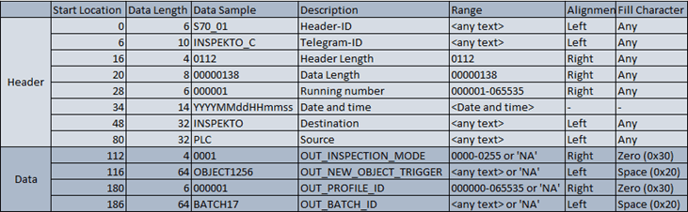
Communication with the camera involves sending and receiving messages consisting of a header and a data part, both of which must adhere to a specific structure.
Robot → INSPEKTO
INSPEKTO → Robot
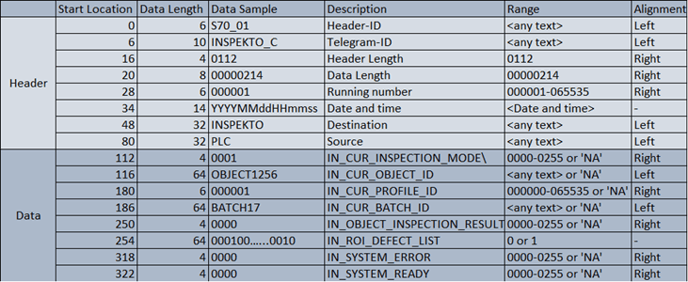
Every sent message must adhere to a specific structure, including the complete header and data part. It is crucial to pay attention to the length of each individual command. If a command does not meet the required length, it should be filled with spaces. In cases where no information is sent for a particular command, "NA" should be appropriately filled with spaces.
For more detailed information on this topic, refer to the INSPEKTO S70 - TCP_IP Integration Manual, utilizing version V4 for this setup.
The following function in horstOS ensures that the commands are filled to the appropriate length with spaces.
// Fill the string up to specified length with blank spaces
function fillUpToLength()
{
    // header
    HeaderID = HeaderID.padEnd(6," ");
    TelegramID = TelegramID.padEnd(10," ");
    HeaderLength = HeaderLength.padEnd(4," ");
    DataLength = DataLength.padEnd(8," ");
    RunningNumber = RunningNumber.padEnd(6," ");
    DateAndTime = DateAndTime.padEnd(14," ");
    Destination = Destination.padEnd(32," ");
    Source = Source.padEnd(32," ");
    // Data
    OUT_INSPECTION_MODE = OUT_INSPECTION_MODE.padEnd(4," ");
    OUT_NEW_OBJECT_TRIGGER = OUT_NEW_OBJECT_TRIGGER.padStart(64," ");
    OUT_PROFILE_ID = OUT_PROFILE_ID.padEnd(6," ");
    OUT_BATCH_ID = OUT_BATCH_ID.padEnd(64," ");
}
The complete message is constructed from the partial commands using the following function.
// Build the camera message
function buildMessage()
{
    var messageHeader = HeaderID + TelegramID + HeaderLength + DataLength + RunningNumber + DateAndTime + Destination + Source;
    var messageData = OUT_INSPECTION_MODE + OUT_NEW_OBJECT_TRIGGER + OUT_PROFILE_ID + OUT_BATCH_ID;
    var message = messageHeader + messageData;

    return message;
}
The message received from the camera system can be formatted appropriately using the following function.
// Split message from camera
function splitInMessage(Response)
{
    // Header
    InHeaderID = Response.substring(0, 6);
    InTelegramID = Response.substring(6, 16);
    InHeader_Length = Response.substring(16, 20);
    InData_Length = Response.substring(20, 28);
    InRunning_Number = Response.substring(28, 34);
    InDate_And_Time = Response.substring(34, 48);
    InDestination = Response.substring(48, 80);
    InSource = Response.substring(80, 112);

    // Data
    IN_CUR_INSPECTION_MODE = Response.substring(112, 116);
    IN_CUR_OBJECT_ID = Response.substring(116, 180);
    IN_CUR_PROFILE_ID = Response.substring(180, 186);
    IN_CUR_BATCH_ID = Response.substring(186, 250);
    IN_OBJECT_INSPECTION_RESULT = Response.substring(250, 254);
    IN_ROI_DEFECT_LIST = Response.substring(254, 318);
    IN_SYSTEM_ERROR = Response.substring(318, 322);
    IN_SYSTEM_READY = Response.substring(322, 326);

    if (IN_SYSTEM_ERROR != "0000")
    {
        show_error("An error " + IN_SYSTEM_ERROR + " has occurred. For more information on the error code, refer to the Inspecto documentation.");
    }

    // This loop fixes the bug which occurs in the inspector software version V5.0.2
    while (IN_SYSTEM_READY != "0001")
    {
        fixBug();

        if (IN_SYSTEM_ERROR != "0000")
        {
            show_error("An error " + IN_SYSTEM_ERROR + "has occurred. For more information on the error code, refer to the Inspecto documentation.");
        }
    }
}
In the Inspekto software version V5.0.2, there is a known bug where the camera sends multiple messages. These messages need to be continuously read until the system writes the value 0001 to the variable "IN_SYSTEM_READY," indicating that it is ready for new commands. This bug is addressed by calling the following function within the mentioned function.
// This function fixes the bug which occurs in the inspector software version V5.0.2
function fixBug()
{
    // Read camera message
    var Msg_Cam = readMessage();

    // Split camera message
    splitInMessage(Msg_Cam);
}
When sending a command to the camera system, it is essential to include the current timestamp. This can be automatically obtained using the following functions.
// Get the current date and time
function getCurrentTime()
{
    return datetime = getDate(new Date) + getTime(new Date);
}

// get the current date
function getDate(DateTime)
{
        return DateTime.getFullYear() + (((DateTime.getMonth()+1) < 10)?"0":"") + (DateTime.getMonth()+1) + ((DateTime.getDate() < 10)?"0":"") + DateTime.getDate() ;
}

// get the current time
function getTime(TimeNow)
{
    return ((TimeNow.getHours() < 10)?"0":"") + ((TimeNow.getHours()>12)?(TimeNow.getHours()-12):TimeNow.getHours()) + ((TimeNow.getMinutes() < 10)?"0":"") + TimeNow.getMinutes() + ((TimeNow.getSeconds() < 10)?"0":"") + TimeNow.getSeconds();
}
4.3.Sending Commands
Messages can be sent to the camera system using the following function.
// Write message via socket
function writeMessage(message) {
    var printWriter =
        new java.io.PrintWriter(
            new java.io.OutputStreamWriter(
                Socket.getOutputStream()));
    printWriter.print(message);
    printWriter.flush();
}
4.4. Reading Camera Messages
The camera system messages can be read using the following function. If the timeout (10 seconds) defined in the connectCam() function elapses without receiving a message from the camera, an error message will be displayed, and the program will be terminated for security reasons.
// Read message from Socket
function readMessage() {
    var bufferedReader =
        new java.io.BufferedReader(
            new java.io.InputStreamReader(
                Socket.getInputStream()));
    var charArrayType = Java.type("char[]");
    var buffer = new charArrayType(1000);
    try {
        var anzahlZeichen = bufferedReader.read(buffer, 0, 1000);
        var message = new java.lang.String(buffer);
    } catch (e) {
        var message = "Timeout: Keine Nachricht erhalten";
        show_error("Timeout: No message was received from the camera. The program is aborted due to safety reasons.");
        Socket.close();
        exitRobotScript();
    }
    return message;
}
4.5. Setting the Inspection Mode
Different inspection modes can be communicated to the camera. These modes can be set via TCP/IP commands or directly through the Inspekto software interface. A variety of modes are available for selection, with detailed descriptions provided in the INSPEKTO S70 - TCP_IP Integration Manual.
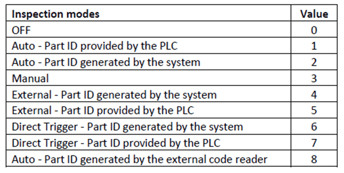
To trigger the camera via TCP/IP on the robot in our example and have the PartID automatically assigned by the Inspekto System, we utilize the Direct Trigger - Part ID generated by the system. This means we use the value 0006 to pass to the camera.
The inspection mode is set using the following function.
// set insptection trigger mode
var InspectionMode = "0006";        // Direct Trigger - part ID generated by the system
setInspectionMode(InspectionMode);

// Set the inspection trigger mode
function setInspectionMode(InspectionMode)
{
    showHint("Setting inspection mode");

    // Telegram breakdown
    // Header
    HeaderID = "S70_01";
    TelegramID = "01INSPEKTO";
    HeaderLength = "0112";
    DataLength = "000138";
    RunningNumber = "000001";
    DateAndTime = getCurrentTime();
    Destination = "INSPEKTO";
    Source = "PLC";
    // Data
    OUT_INSPECTION_MODE = InspectionMode;
    OUT_NEW_OBJECT_TRIGGER = "NA";
    OUT_PROFILE_ID = "NA";
    OUT_BATCH_ID = "NA";

    // Fill the string up to specified length with blank spaces
    fillUpToLength();

    // Build message
    var Message = buildMessage();

    // Write camera message
    writeMessage(Message);

    // Read camera message
    var Msg_Cam = readMessage();

    // Split camera message
    splitInMessage(Msg_Cam);

    sleep(2000);
}
4.6. Loading the inspection profile
The camera can inspect different components using various inspection profiles. These profiles can be loaded using the following function.
// load inspection profile
var ProfileID = "000002";       // Profile 2
loadProfile(ProfileID);

// Load an inspection profile
function loadProfile(ProfileID)
{
    showHint("Loading profile ID")

    // Telegram breakdown
    // Header
    HeaderID = "S70_01";
    TelegramID = "01INSPEKTO";
    HeaderLength = "0112";
    DataLength = "000138";
    RunningNumber = "000001";
    DateAndTime = getCurrentTime();
    Destination = "INSPEKTO";
    Source = "PLC";
    // Data
    OUT_INSPECTION_MODE = "NA";
    OUT_NEW_OBJECT_TRIGGER = "NA";
    OUT_PROFILE_ID = ProfileID;
    OUT_BATCH_ID = "NA";

    // Fill the string up to specified length with blank spaces
    fillUpToLength();

    // Build message
    var Message = buildMessage();

    // Write camera message
    writeMessage(Message);

    // Read camera message
    var Msg_Cam = readMessage();

    // Split camera message
    splitInMessage(Msg_Cam);

    sleep(2000);
}
4.7. Assigning a Batch ID
With the following function, you can assign a new Batch ID.
// set a new batch ID
var BatchID = "TestBatchID";        // new batchID
setBatchID(BatchID);

// Set a batch ID
function setBatchID(BatchID)
{
    showHint("Setting batch ID")

    // Telegram breakdown
    // Header
    HeaderID = "S70_01";
    TelegramID = "01INSPEKTO";
    HeaderLength = "0112";
    DataLength = "000138";
    RunningNumber = "000001";
    DateAndTime = getCurrentTime();
    Destination = "INSPEKTO";
    Source = "PLC";
    // Data
    OUT_INSPECTION_MODE = "NA";
    OUT_NEW_OBJECT_TRIGGER = "NA";
    OUT_PROFILE_ID = "NA";
    OUT_BATCH_ID = BatchID;

    // Fill the string up to specified length with blank spaces
    fillUpToLength();

    // Build message
    var Message = buildMessage();

    // Write camera message
    writeMessage(Message);

    // Read camera message
    var Msg_Cam = readMessage();

    // Split camera message
    splitInMessage(Msg_Cam);
}
4.8. Triggering the camera
To trigger the camera, a new PartID must be sent to it. This ID needs to be different with each trigger command; otherwise, the camera will not capture a new image. If the inspection mode "Direct Trigger - Part ID generated by the system" is selected, the Inspekto system will assign a unique ID to the inspection image.
The camera is triggered using the following function.
// set new object trigger
var PartID = "1";
setNewObjectTrigger(PartID);
show_info("Inspection Result: " + IN_OBJECT_INSPECTION_RESULT);

// Set a trigger
function setNewObjectTrigger(PartID)
{
    // Telegram breakdown
    // Header
    HeaderID = "S70_01";
    TelegramID = "01INSPEKTO";
    HeaderLength = "0112";
    DataLength = "000138";
    RunningNumber = "000001";
    DateAndTime = getCurrentTime();
    Destination = "INSPEKTO";
    Source = "PLC";
    // Data
    OUT_INSPECTION_MODE = "NA";
    OUT_NEW_OBJECT_TRIGGER = PartID;
    OUT_PROFILE_ID = "NA";
    OUT_BATCH_ID = "NA";

    // Fill the string up to specified length with blank spaces
    fillUpToLength();

    // Build message
    var Message = buildMessage();

    // Write camera message
    writeMessage(Message);

    // Read camera message
    var Msg_Cam = readMessage();

    // Split camera message
    splitInMessage(Msg_Cam);
}
5. Textual example program
The following example program calls all the functions mentioned above. It sets the inspection mode, loads an inspection profile, and triggers the camera in a loop every 2 seconds. The Part ID is incremented with each loop iteration. This program can be downloaded as a complete horstOS program at the end of the article.
////////////////////////////////////////////// Variables //////////////////////////////////////////////

// Communication
var IP_Cam = "192.168.2.10";    // IP adress camera
var Port_Cam = 2052;            // Port camera
var Socket = null;              // socket object

// camera
var InspectionMode = "0006";    // Direct Trigger - part ID generated by the system
var ProfileID = "000002";       // Profile 2
var BatchID = "TestBatchID";    // new batchID

// Telegram breakdown
// Header Robot - Inspekto
var HeaderID = "";
var TelegramID = "";
var HeaderLength = "";
var DataLength = "";
var RunningNumber = "";
var DateAndTime = "";
var Destination = "";
var Source = "";
// Data Robot - Inspekto
var OUT_INSPECTION_MODE = "";
var OUT_NEW_OBJECT_TRIGGER = "";
var OUT_PROFILE_ID = "";
var OUT_BATCH_ID = "";

// Header Inspekto - Robot
var InHeaderID = "";
var InTelegramID = "";
var InHeader_Length = "";
var InData_Length = "";
var InRunning_Number = "";
var InDate_And_Time = "";
var InDestination = "";
var InSource = "";
// Data Inspekto - Robot
var IN_CUR_INSPECTION_MODE = "";
var IN_CUR_OBJECT_ID = "";
var IN_CUR_PROFILE_ID = "";
var IN_CUR_BATCH_ID = "";
var IN_OBJECT_INSPECTION_RESULT = "";
var IN_ROI_DEFECT_LIST = "";
var IN_SYSTEM_ERROR = "";
var IN_SYSTEM_READY = "";

////////////////////////////////////////////// Program  //////////////////////////////////////////////

//Establish camera connection
connectCam();

try
{
    // set insptection trigger mode
    setInspectionMode(InspectionMode);

    // load inspection profile
    loadProfile(ProfileID);

    // set a new batch ID
    //setBatchID(BatchID);

    var t = 1;

    while (true)
    {
        var PartID = String(t);     // PartID needs to be different than the previus ID the system received

        // set new object trigger
        setNewObjectTrigger(PartID);
        show_info("Inspection Result: " + IN_OBJECT_INSPECTION_RESULT);
        // Result: 0001 - IO
        // Result: 0002 - NIO
        // Result: 0003 - Objekt erkannt, liegt aber nicht im geforderten Bereich. -> NIO
        // Result: 0255 - Kein Objekt erkannt -> NIO

        t = t+1;
        sleep(2000);
    }

} finally
{
    Socket.close();
}

////////////////////////////////////////////// Functions //////////////////////////////////////////////

// Set the inspection trigger mode
function setInspectionMode(InspectionMode)
{
    showHint("Setting inspection mode");

    // Telegram breakdown
    // Header
    HeaderID = "S70_01";
    TelegramID = "01INSPEKTO";
    HeaderLength = "0112";
    DataLength = "000138";
    RunningNumber = "000001";
    DateAndTime = getCurrentTime();
    Destination = "INSPEKTO";
    Source = "PLC";
    // Data
    OUT_INSPECTION_MODE = InspectionMode;
    OUT_NEW_OBJECT_TRIGGER = "NA";
    OUT_PROFILE_ID = "NA";
    OUT_BATCH_ID = "NA";

    // Fill the string up to specified length with blank spaces
    fillUpToLength();

    // Build message
    var Message = buildMessage();

    // Write camera message
    writeMessage(Message);

    // Read camera message
    var Msg_Cam = readMessage();

    // Split camera message
    splitInMessage(Msg_Cam);

    sleep(2000);
}

// Load an inspection profile
function loadProfile(ProfileID)
{
    showHint("Loading profile ID")

    // Telegram breakdown
    // Header
    HeaderID = "S70_01";
    TelegramID = "01INSPEKTO";
    HeaderLength = "0112";
    DataLength = "000138";
    RunningNumber = "000001";
    DateAndTime = getCurrentTime();
    Destination = "INSPEKTO";
    Source = "PLC";
    // Data
    OUT_INSPECTION_MODE = "NA";
    OUT_NEW_OBJECT_TRIGGER = "NA";
    OUT_PROFILE_ID = ProfileID;
    OUT_BATCH_ID = "NA";

    // Fill the string up to specified length with blank spaces
    fillUpToLength();

    // Build message
    var Message = buildMessage();

    // Write camera message
    writeMessage(Message);

    // Read camera message
    var Msg_Cam = readMessage();

    // Split camera message
    splitInMessage(Msg_Cam);

    sleep(2000);
}

// Set a trigger
function setNewObjectTrigger(PartID)
{
    // Telegram breakdown
    // Header
    HeaderID = "S70_01";
    TelegramID = "01INSPEKTO";
    HeaderLength = "0112";
    DataLength = "000138";
    RunningNumber = "000001";
    DateAndTime = getCurrentTime();
    Destination = "INSPEKTO";
    Source = "PLC";
    // Data
    OUT_INSPECTION_MODE = "NA";
    OUT_NEW_OBJECT_TRIGGER = PartID;
    OUT_PROFILE_ID = "NA";
    OUT_BATCH_ID = "NA";

    // Fill the string up to specified length with blank spaces
    fillUpToLength();

    // Build message
    var Message = buildMessage();

    // Write camera message
    writeMessage(Message);

    // Read camera message
    var Msg_Cam = readMessage();

    // Split camera message
    splitInMessage(Msg_Cam);
}

// Set a batch ID
function setBatchID(BatchID)
{
    showHint("Setting batch ID")

    // Telegram breakdown
    // Header
    HeaderID = "S70_01";
    TelegramID = "01INSPEKTO";
    HeaderLength = "0112";
    DataLength = "000138";
    RunningNumber = "000001";
    DateAndTime = getCurrentTime();
    Destination = "INSPEKTO";
    Source = "PLC";
    // Data
    OUT_INSPECTION_MODE = "NA";
    OUT_NEW_OBJECT_TRIGGER = "NA";
    OUT_PROFILE_ID = "NA";
    OUT_BATCH_ID = BatchID;

    // Fill the string up to specified length with blank spaces
    fillUpToLength();

    // Build message
    var Message = buildMessage();

    // Write camera message
    writeMessage(Message);

    // Read camera message
    var Msg_Cam = readMessage();

    // Split camera message
    splitInMessage(Msg_Cam);
}

// Fill the string up to specified length with blank spaces
function fillUpToLength()
{
    // header
    HeaderID = HeaderID.padEnd(6," ");
    TelegramID = TelegramID.padEnd(10," ");
    HeaderLength = HeaderLength.padEnd(4," ");
    DataLength = DataLength.padEnd(8," ");
    RunningNumber = RunningNumber.padEnd(6," ");
    DateAndTime = DateAndTime.padEnd(14," ");
    Destination = Destination.padEnd(32," ");
    Source = Source.padEnd(32," ");
    // Data
    OUT_INSPECTION_MODE = OUT_INSPECTION_MODE.padEnd(4," ");
    OUT_NEW_OBJECT_TRIGGER = OUT_NEW_OBJECT_TRIGGER.padStart(64," ");
    OUT_PROFILE_ID = OUT_PROFILE_ID.padEnd(6," ");
    OUT_BATCH_ID = OUT_BATCH_ID.padEnd(64," ");
}

// Build the camera message
function buildMessage()
{
    var messageHeader = HeaderID + TelegramID + HeaderLength + DataLength + RunningNumber + DateAndTime + Destination + Source;
    var messageData = OUT_INSPECTION_MODE + OUT_NEW_OBJECT_TRIGGER + OUT_PROFILE_ID + OUT_BATCH_ID;
    var message = messageHeader + messageData;

    return message;
}

// Split message from camera
function splitInMessage(Response)
{
    // Header
    InHeaderID = Response.substring(0, 6);
    InTelegramID = Response.substring(6, 16);
    InHeader_Length = Response.substring(16, 20);
    InData_Length = Response.substring(20, 28);
    InRunning_Number = Response.substring(28, 34);
    InDate_And_Time = Response.substring(34, 48);
    InDestination = Response.substring(48, 80);
    InSource = Response.substring(80, 112);

    // Data
    IN_CUR_INSPECTION_MODE = Response.substring(112, 116);
    IN_CUR_OBJECT_ID = Response.substring(116, 180);
    IN_CUR_PROFILE_ID = Response.substring(180, 186);
    IN_CUR_BATCH_ID = Response.substring(186, 250);
    IN_OBJECT_INSPECTION_RESULT = Response.substring(250, 254);
    IN_ROI_DEFECT_LIST = Response.substring(254, 318);
    IN_SYSTEM_ERROR = Response.substring(318, 322);
    IN_SYSTEM_READY = Response.substring(322, 326);

    if (IN_SYSTEM_ERROR != "0000")
    {
        show_error("An error " + IN_SYSTEM_ERROR + " has occurred. For more information on the error code, refer to the Inspecto documentation.");
    }

    // This loop fixes the bug which occurs in the inspector software version V5.0.2
    while (IN_SYSTEM_READY != "0001")
    {
        fixBug();

        if (IN_SYSTEM_ERROR != "0000")
        {
            show_error("An error " + IN_SYSTEM_ERROR + "has occurred. For more information on the error code, refer to the Inspecto documentation.");
        }
    }
}

// Get the current date and time
function getCurrentTime()
{
    return datetime = getDate(new Date) + getTime(new Date);
}

// get the current date
function getDate(DateTime)
{
        return DateTime.getFullYear() + (((DateTime.getMonth()+1) < 10)?"0":"") + (DateTime.getMonth()+1) + ((DateTime.getDate() < 10)?"0":"") + DateTime.getDate() ;
}

// get the current time
function getTime(TimeNow)
{
    return ((TimeNow.getHours() < 10)?"0":"") + ((TimeNow.getHours()>12)?(TimeNow.getHours()-12):TimeNow.getHours()) + ((TimeNow.getMinutes() < 10)?"0":"") + TimeNow.getMinutes() + ((TimeNow.getSeconds() < 10)?"0":"") + TimeNow.getSeconds();
}

// Establish connection to camera
function connectCam()
{
    showHint("Connect to camera");
    try
    {
        // Establish connection via socket
        Socket = new java.net.Socket();
        Socket.connect(new java.net.InetSocketAddress(IP_Cam, Port_Cam),  10000); // 10 s timeout while establishing connection
        // 10 sek timeout while reading message
        Socket.setSoTimeout(10000);
        showHint("Connection to camera established");
    }
    catch (e)
    {
        show_error("A connection with the Inspekto-System could not be established! The program is aborted due to safety reasons.");
        exitRobotScript();
    }
}

// Read message from Socket
function readMessage() {
    var bufferedReader =
        new java.io.BufferedReader(
            new java.io.InputStreamReader(
                Socket.getInputStream()));
    var charArrayType = Java.type("char[]");
    var buffer = new charArrayType(1000);
    try {
        var anzahlZeichen = bufferedReader.read(buffer, 0, 1000);
        var message = new java.lang.String(buffer);
    } catch (e) {
        var message = "Timeout: Keine Nachricht erhalten";
        show_error("Timeout: No message was received from the camera. The program is aborted due to safety reasons.");
        Socket.close();
        exitRobotScript();
    }
    return message;
}

// Write message via socket
function writeMessage(message) {
    var printWriter =
        new java.io.PrintWriter(
            new java.io.OutputStreamWriter(
                Socket.getOutputStream()));
    printWriter.print(message);
    printWriter.flush();
}

// This function fixes the bug which occurs in the inspector software version V5.0.2
function fixBug()
{
    // Read camera message
    var Msg_Cam = readMessage();

    // Split camera message
    splitInMessage(Msg_Cam);
}
6. Graphical Example Program
The graphical example program includes the functions mentioned above as textual global functions. These can be dragged into the Functions folder as described in the Importing and Exporting Files in CONTROL.
To utilize the global functions, the following variables must be globally created in the graphical program. Therefore, it is easier to start with the sample program provided at the end of this article and customize it to fit the specific application.
// Communication
var IP_Cam
var Port_Cam
var SocketConnection

// camera
var InspectionMode
var ProfileID
var BatchID

// Telegram breakdown
// Header Robot - Inspekto
var HeaderID
var TelegramID
var HeaderLength
var DataLength
var RunningNumber
var DateAndTime
var Destination
var Source
// Data Robot - Inspekto
var OUT_INSPECTION_MODE
var OUT_NEW_OBJECT_TRIGGER
var OUT_PROFILE_ID
var OUT_BATCH_ID

// Header Inspekto - Robot
var InHeaderID
var InTelegramID
var InHeader_Length
var InData_Length
var InRunning_Number
var InDate_And_Time
var InDestination
var InSource
// Data Inspekto - Robot
var IN_CUR_INSPECTION_MODE
var IN_CUR_OBJECT_ID
var IN_CUR_PROFILE_ID
var IN_CUR_BATCH_ID
var IN_OBJECT_INSPECTION_RESULT
var IN_ROI_DEFECT_LIST
var IN_SYSTEM_ERROR
var IN_SYSTEM_READY
The sample program is structured in a way that allows for the initial setup of all necessary variables. This includes setting the IP address of the camera system, the port, the appropriate Inspection Mode, the ProfileID to load, and so on.
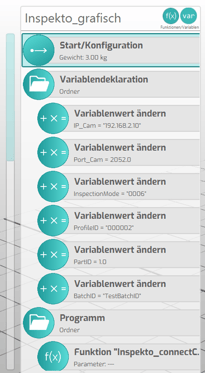
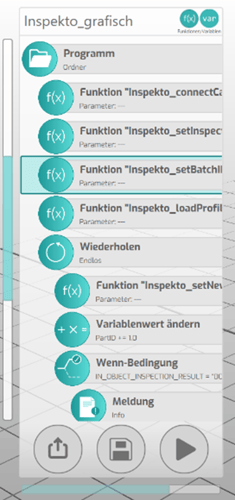
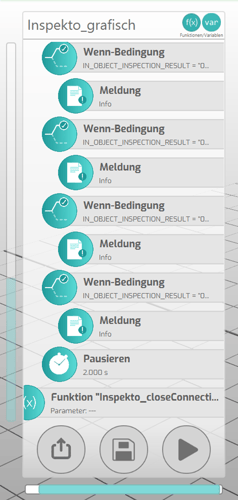
In this section of the program, the connection to the camera is established, the Inspection Mode and Batch ID are set, and the inspection profile is loaded. Subsequently, the camera is triggered at intervals of every 2 seconds in a loop, displaying the inspection result.
7. Programs / Documents
Inspekto S70 - Digital IO Integration Manual V2