
Installation of horstFX on Windows
1) Download the horstOS/FX installer file via the link in the e-mail. The relevant application engineer will contact you with a download link.
2) Move the installer file to the desktop and run it from there. Please select a local data carrier as the installation folder and not a folder located on a server.
Installation permissions and existing versions
NOTE:
During installation, it is important that the user has appropriate read & write permissions for the installation location used and that the application is executed as ADMIN. If a horstOS/FX version is already installed on the computer, please rename the existing installation folder before installing the new version (e.g. horstOS_2022.04).
3) If the installation was successful, start horstOS/FX.
4) When horstOS/FX is opened for the first time, a window appears indicating missing licences. A connection to horstCOSMOS must first be established with the respective user name and password.
The user must first be created in horstCOSMOS with a user name and password! Please use your company e-mail address to register with horstCOSMOS and not your private e-mail address.
horstFX: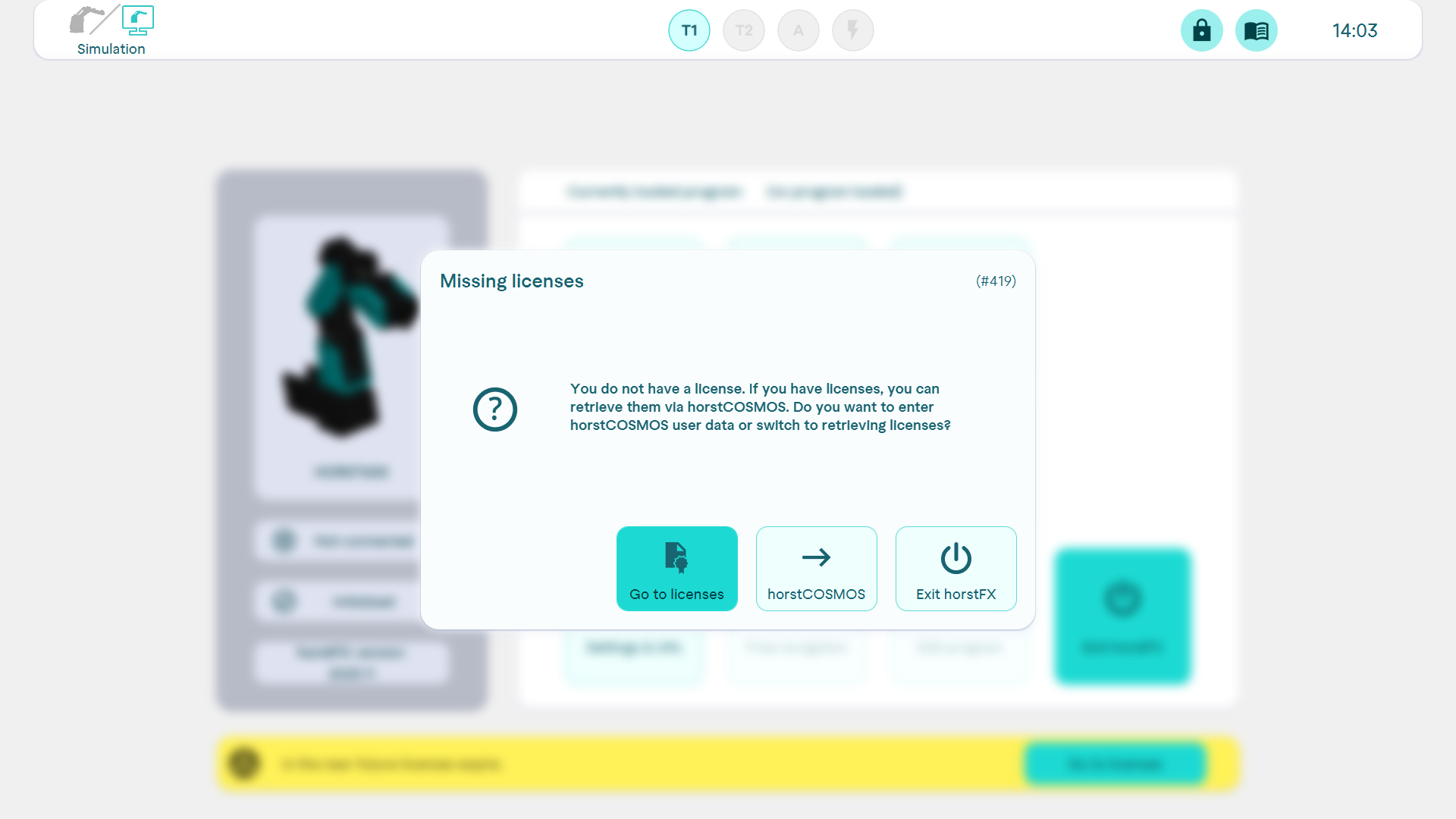
horstOS: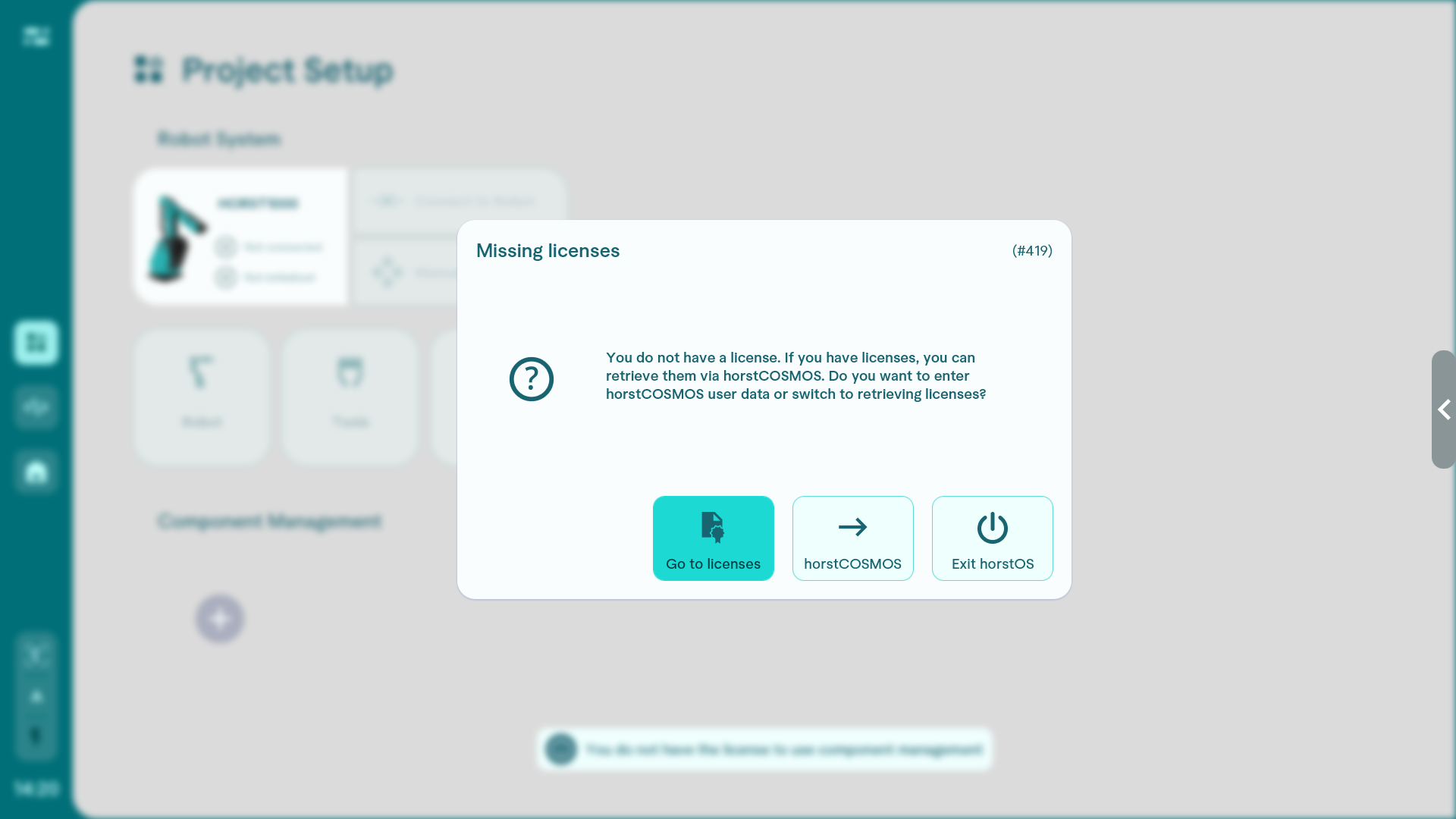
5) Confirm the information about the use of the "Administrator" user role with OK.
6) Enter your username and password to activate the connection to horstCOSMOS.
Internet connection
NOTE: An Internet connection must be established beforehand.
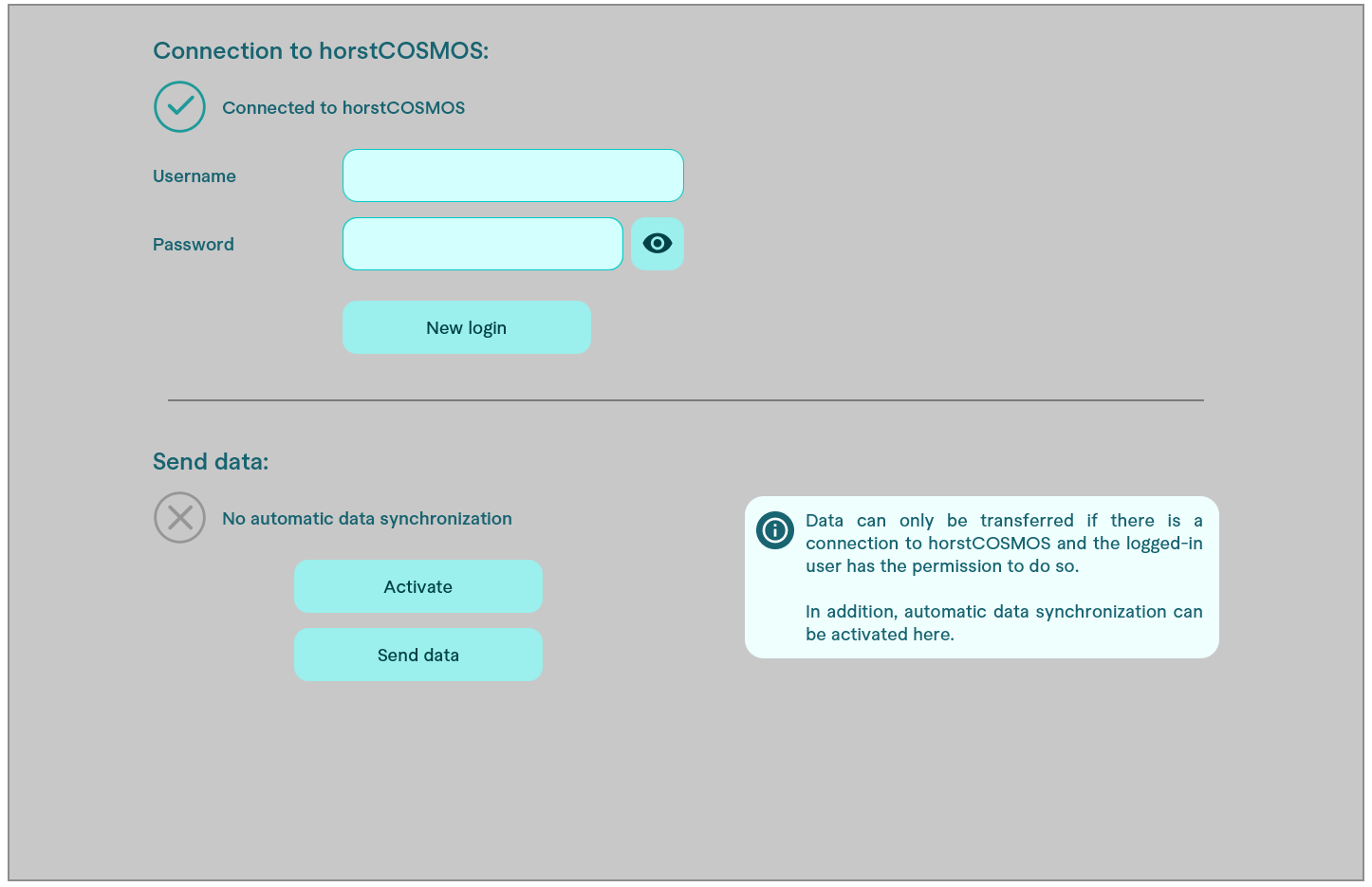
7) After successful registration, a pop-up appears and the licences are retrieved automatically.
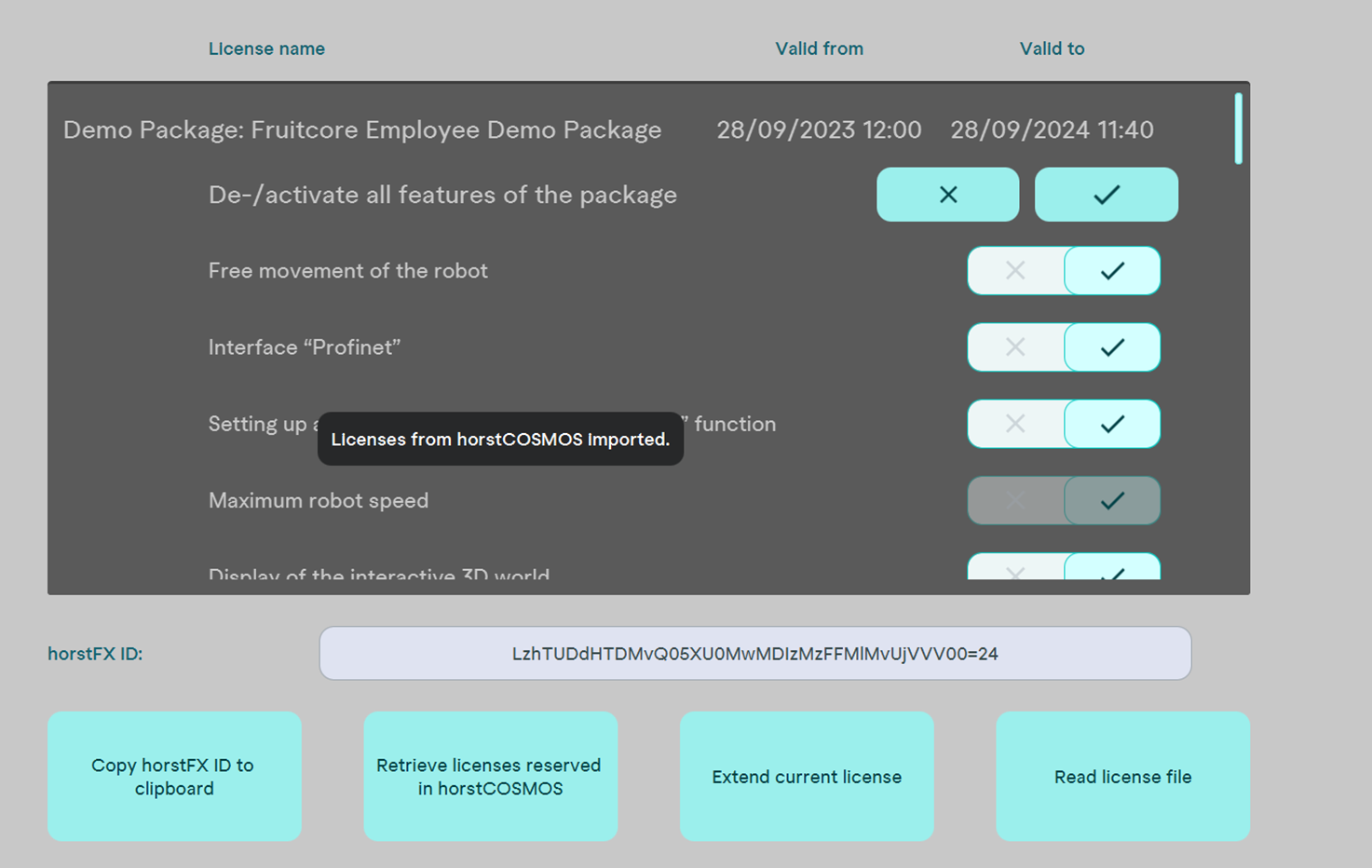
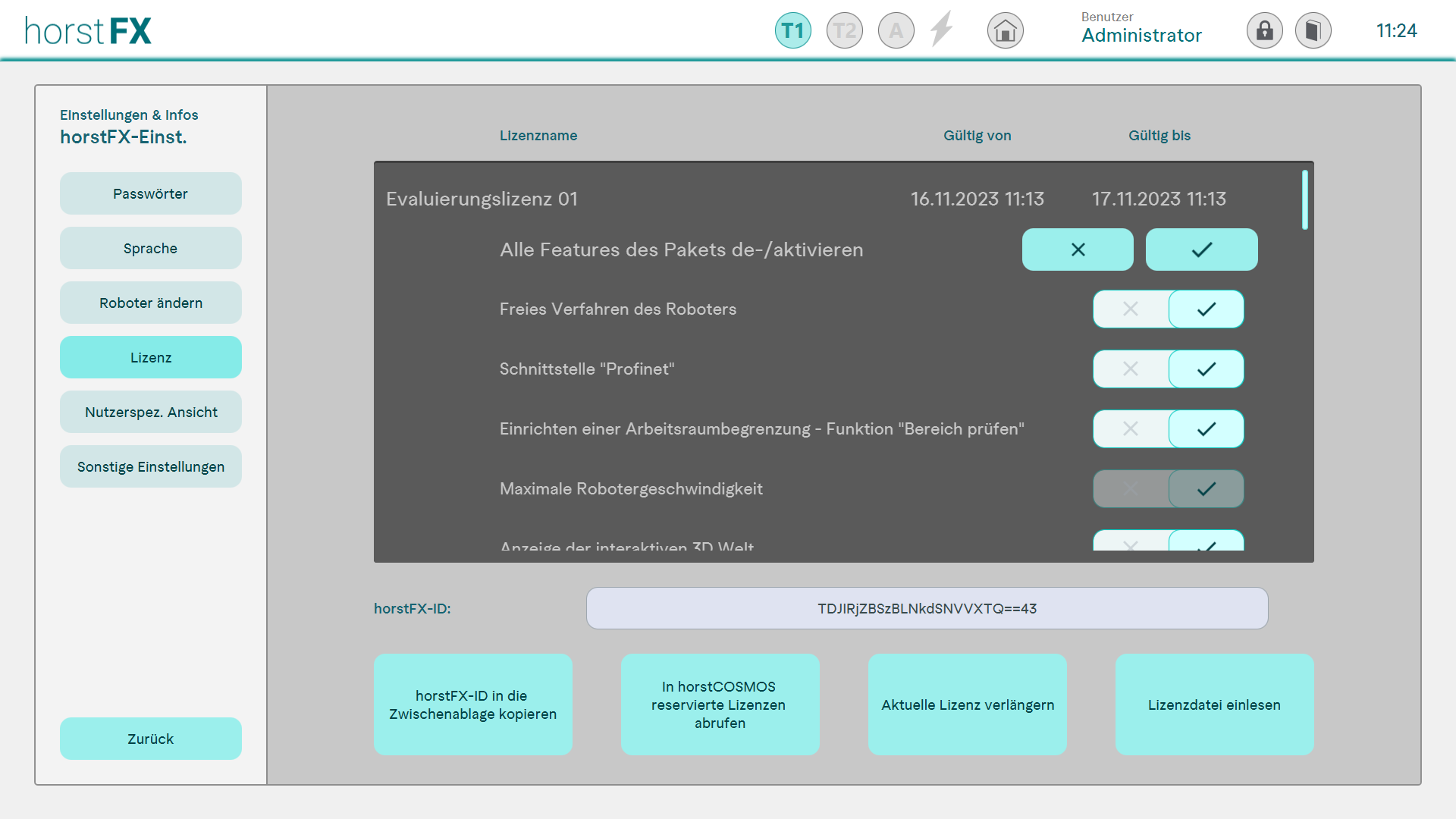
8.) horstFX: The assigned licences can be viewed via Settings>horstFX Settings>Licence.
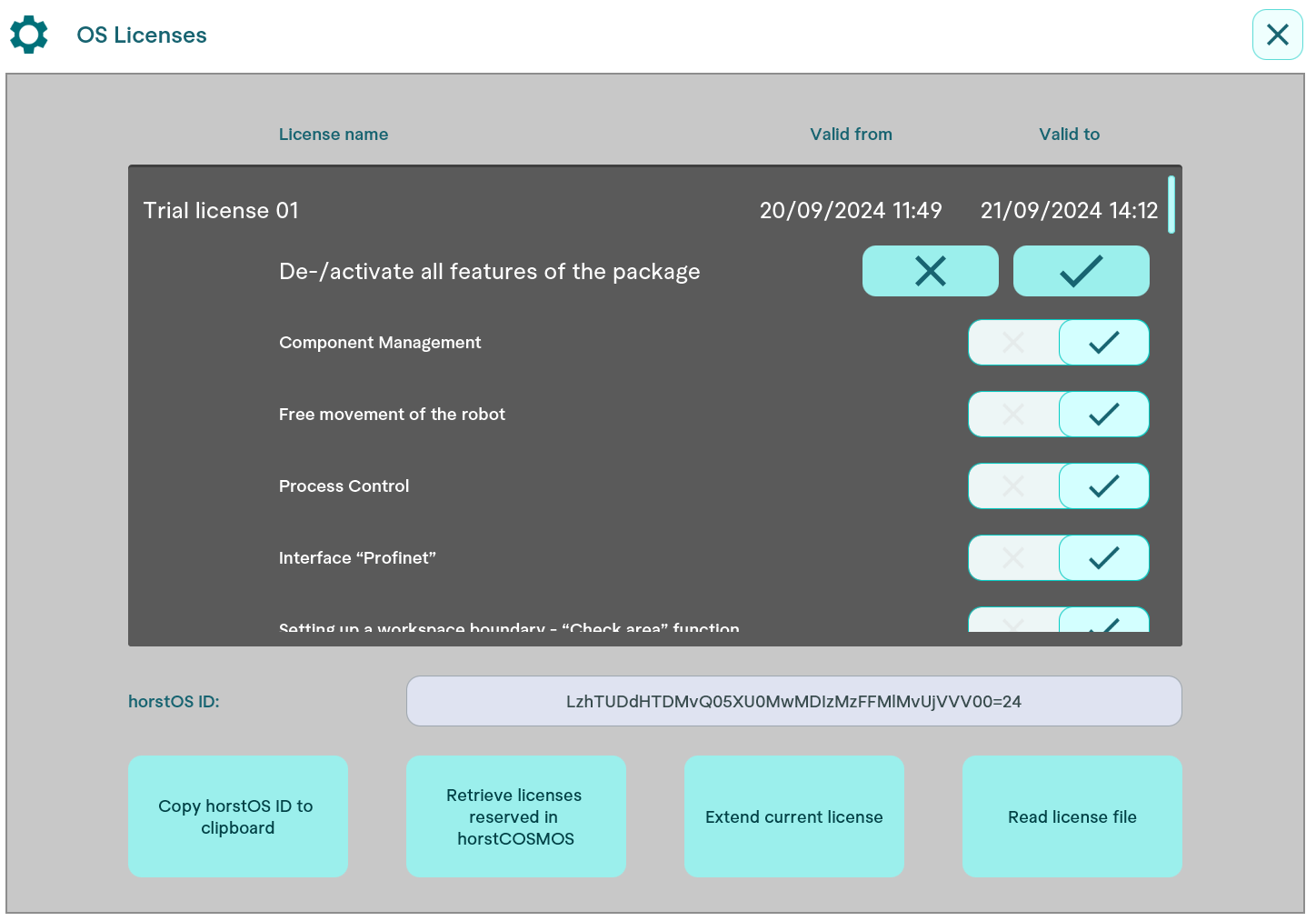
horstOS: You can view the assigned licenses by navigating to Settings > OS Licenses.
License use
NOTE: The licences can only be used by one person in a company for a certain period of time. The default setting for the usage period is one day. If the licence is blocked by a user, no other employee from the same company can access it.