
Program creation
Create and edit programs in the graphical programming view. Functions group recurring actions, macro buttons provide direct access to selected functions, and variables store values used during program execution.
Programs
Edit and convert programs
Load an existing program, adapt it and save the changes. When loading a graphical program, it can be converted to a textual program. This conversion cannot be undone.
Select Load as textual program next to Load to perform the conversion.
Anchors
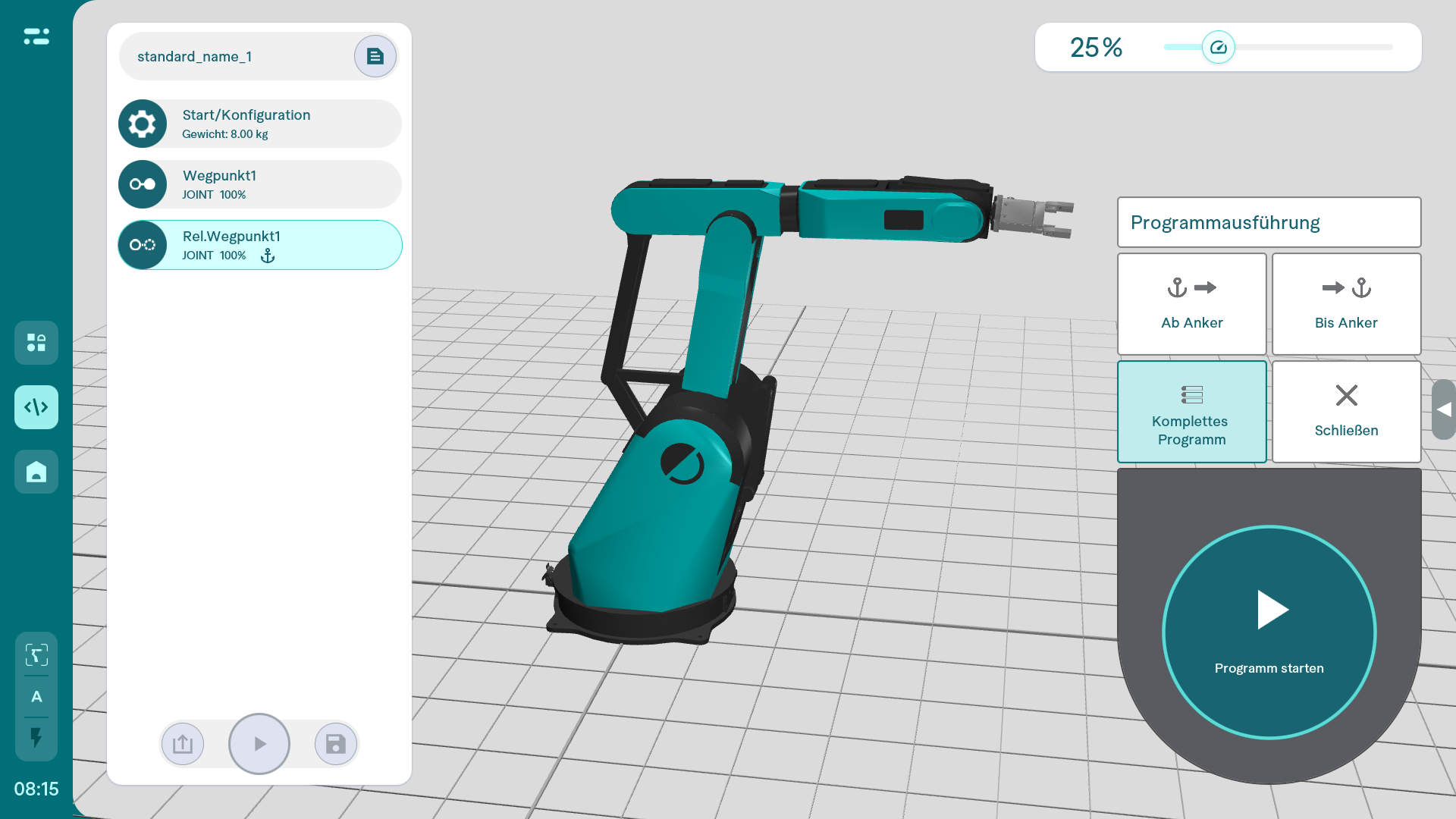
An anchor specifies the point up to which, or from which, a program is executed.
Functions, macros and variables
Functions
A function groups several actions into a reusable program block. This keeps the program tree clear when the same sequence is needed repeatedly.
Select Functions next to Add action to name and create a graphical or textual function. Before programming, choose whether it is global or local: global functions can be used in other programs, while local functions apply only to the current program. Parameters and return values can also be defined.
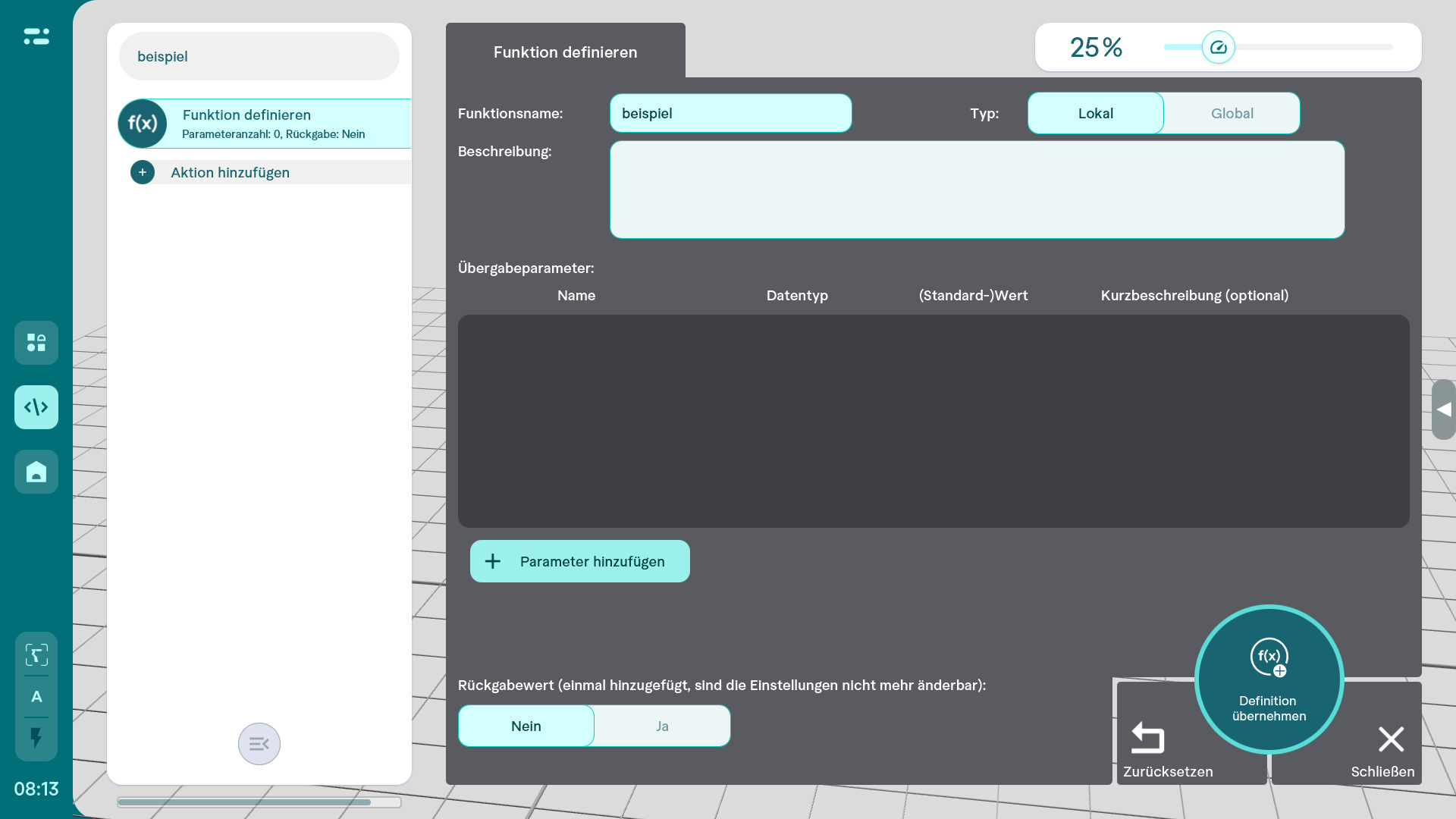
After accepting the definition, edit the graphical function. Its first block, Define function, is fixed in the program tree and cannot be deleted or moved. Enabling Return value also adds a Return value block at the end. See Command: Return value.
Macros and macro buttons
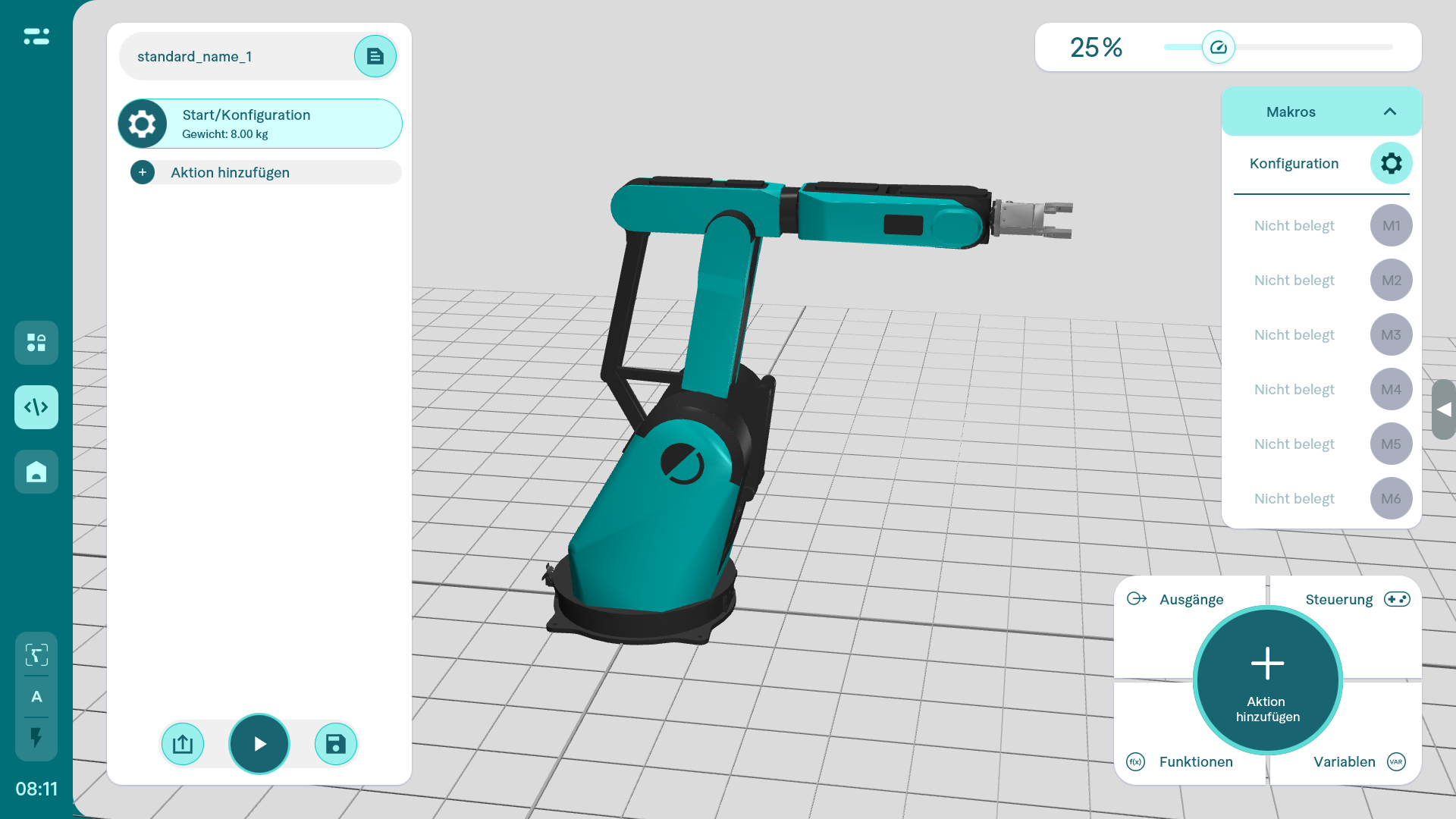
Macro buttons execute selected functions directly. They are available in the programming view and in the User-specific operating view menu.
There are six macro buttons. Assign a local or global function to each button. The assignment applies to the current program.
Variables and persistent variables
Variables store values needed later in the program. Select Variables → +New variable to create one. The available data types are Numeric, Text, Target position and Object.
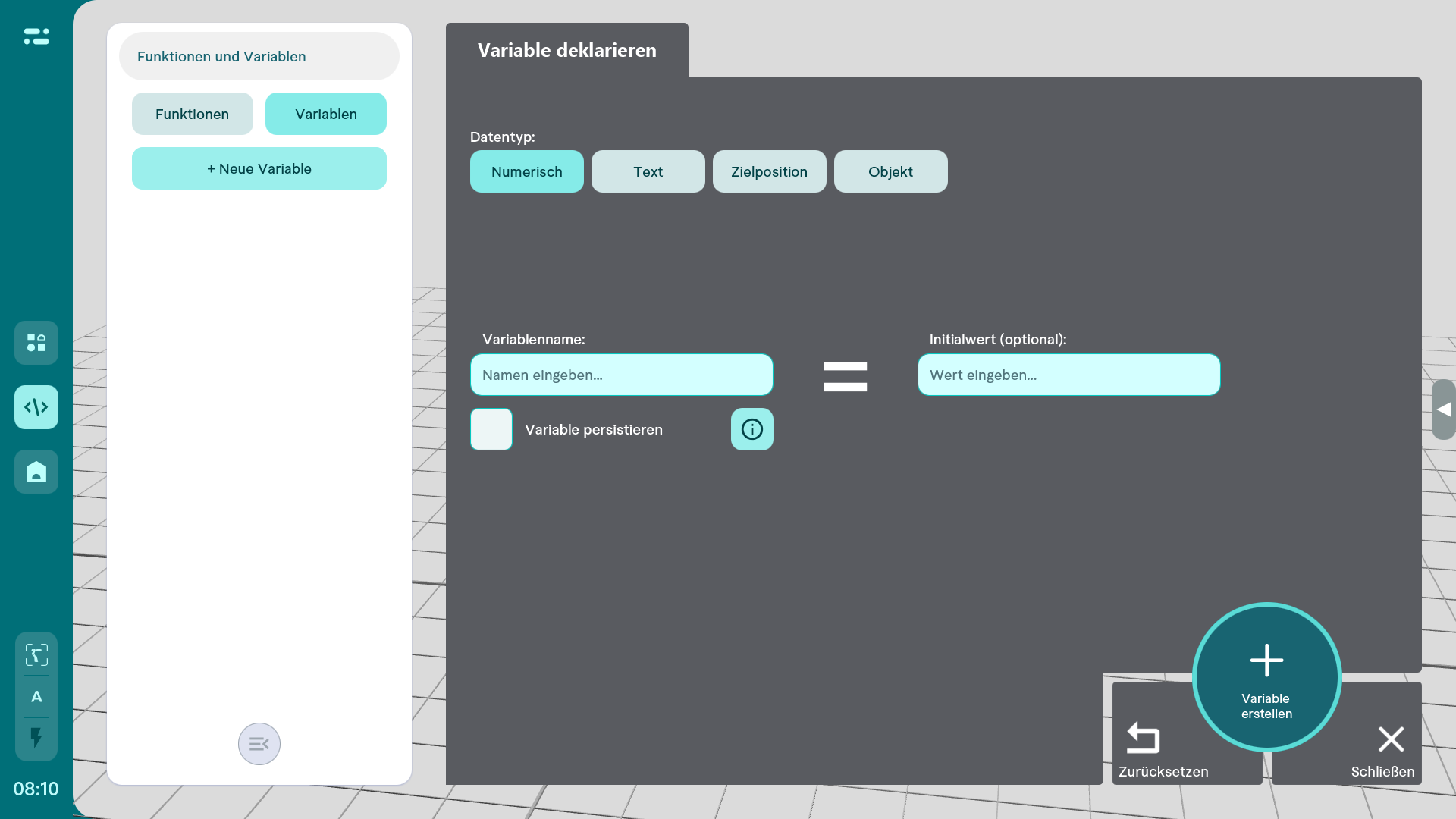
A persistent variable is saved in a separate file. Its value remains after the program has run and horstOS has closed. This is useful for recording process data.