
Tutorial: inspect the Gazebo preview
Goal: open the local G2 model and read its six joint states through ROS. Use the pinned offline preparation. Mass, inertia, center of mass, effort and damping are explicitly unvalidated placeholders.
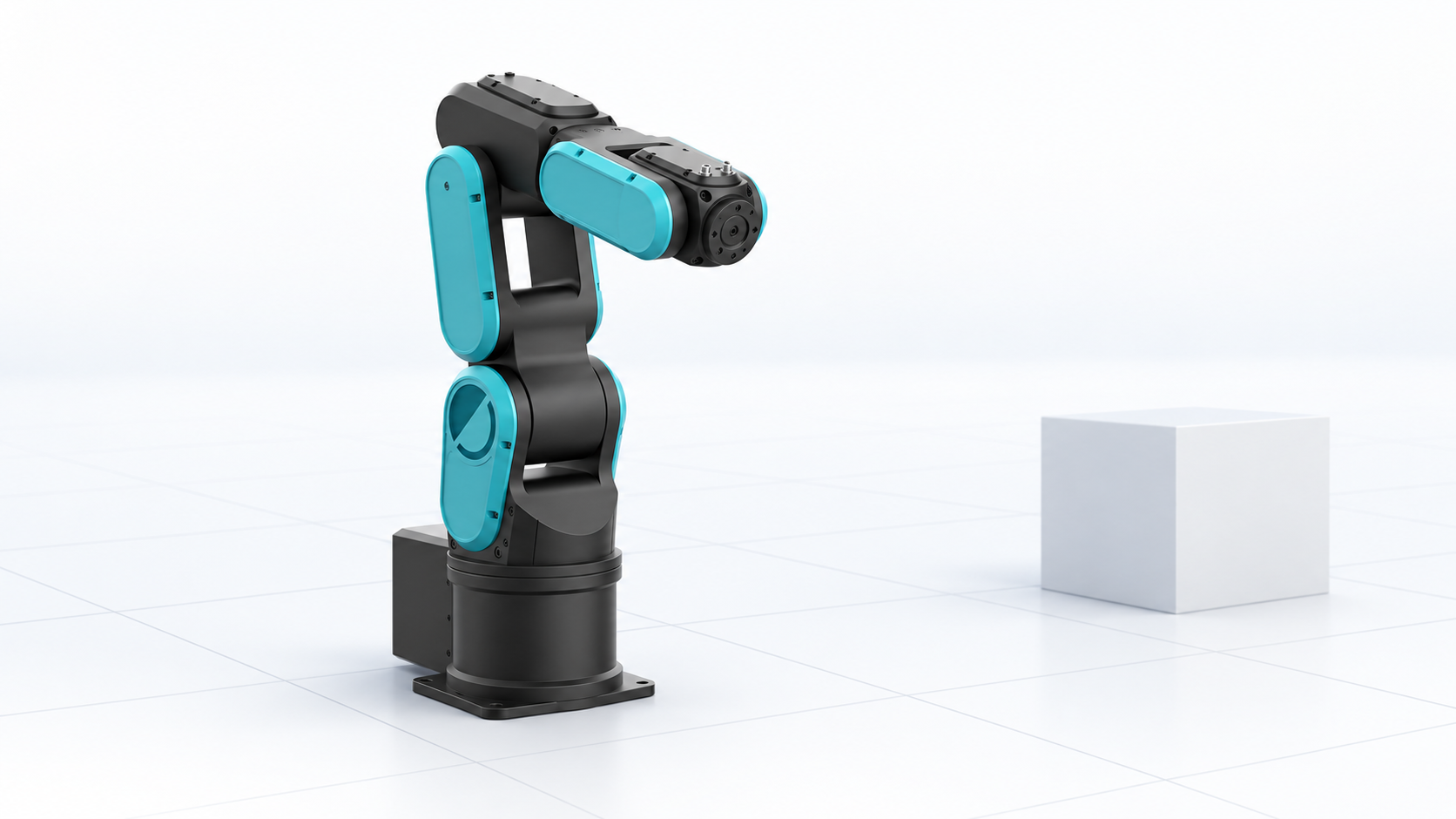
Local software view
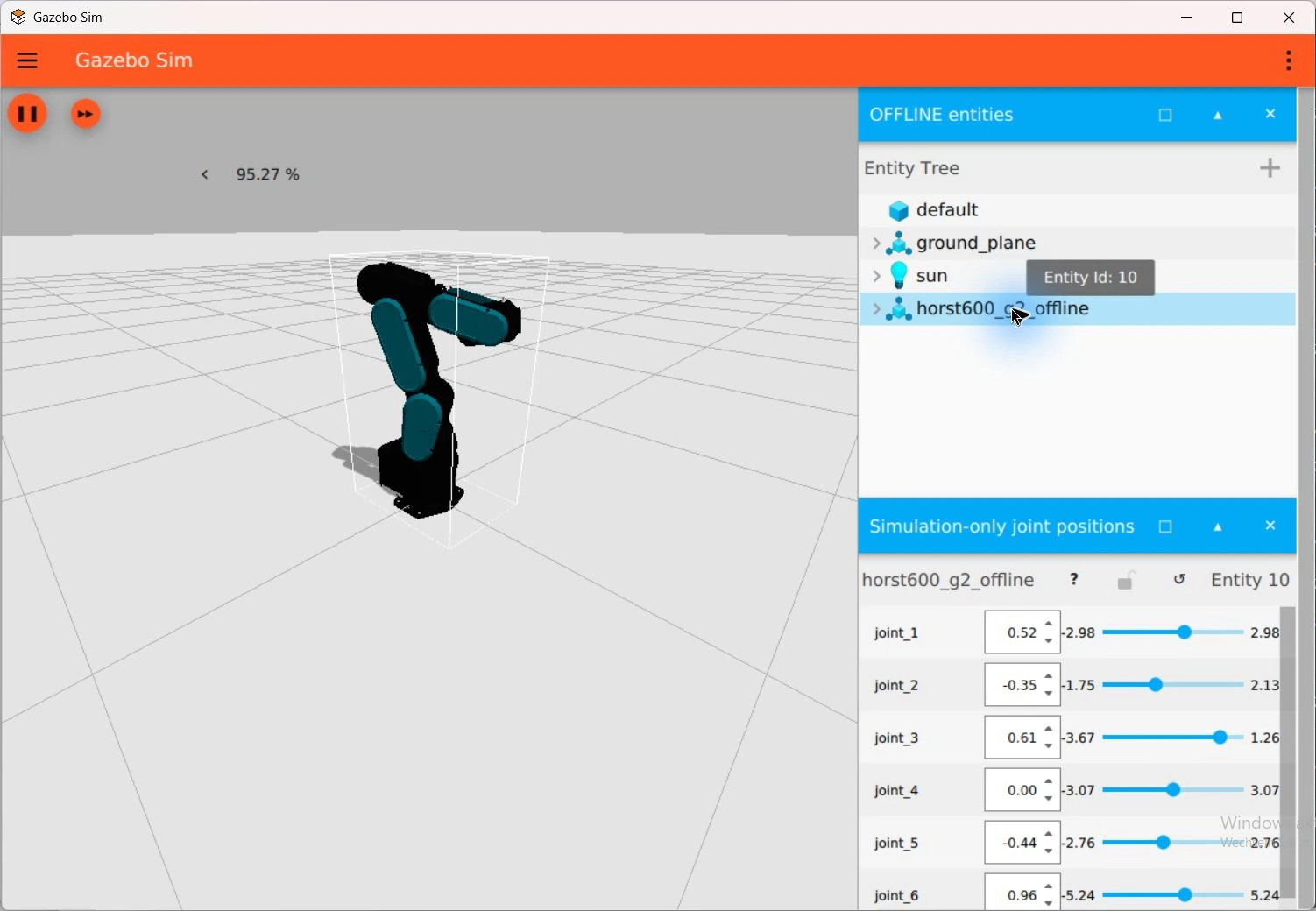
Compare the integration windows and appearance variants.
1. Check and launch
From the workspace root on Windows:
pwsh -File integrations/ros/env/launch-horst-rviz.ps1 -Mode Gazebo -CheckOnly
pwsh -File integrations/ros/env/launch-horst-rviz.ps1 -Mode Gazebo
This opens Gazebo Harmonic / Sim 8.15.0 through authenticated VcXsrv. The isolated ROS domain is 79 and Gazebo partition is plexa_horst600_g2_offline. It needs no Runtime supervisor or endpoint. Keep only one instance of this mode running.
2. Inspect the model
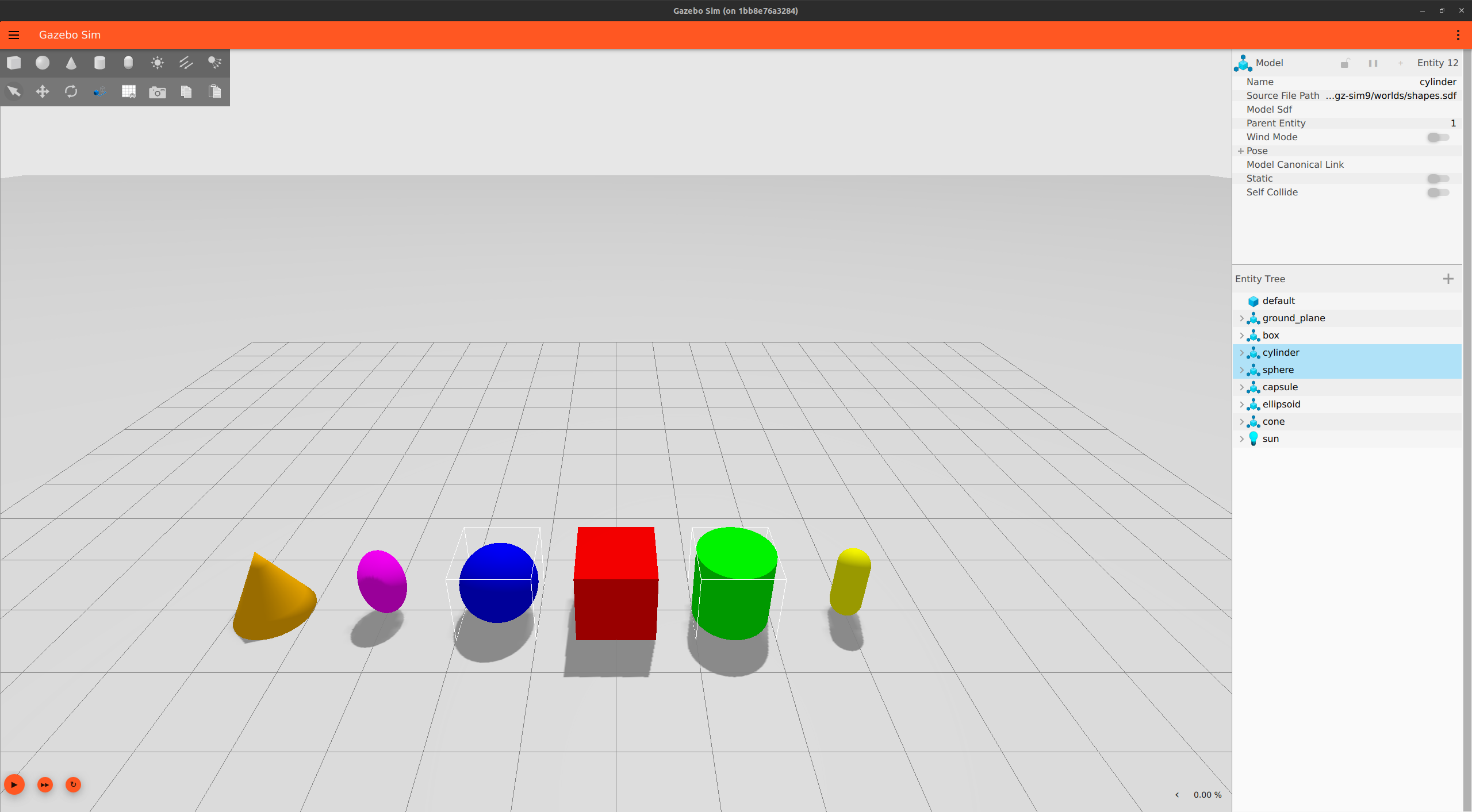
Use the Entity Tree on the right to find a model, then expand its links and joints. The Component Inspector above it shows the selected entity's properties. The visual tour explains these landmarks in more detail.
Select horst600_g2_offline in the Entity Tree. The model has seven visual links, six revolute axes and a fixed base. The six local position controls use radians and affect only this Gazebo model. Gravity and self-collision are disabled.
Use this scene for model appearance and joint state. Dynamics, torque predictions, controller tuning and physical collision assessment require a separately validated physics model.
3. Inspect ROS output
After sourcing Jazzy and the overlay in WSL:
ROS_DOMAIN_ID=79 ros2 topic echo /gazebo_preview/joint_states --once
ROS_DOMAIN_ID=79 ros2 topic echo /clock --once
Expected result: joint_1…joint_6 positions in radians and simulation time. The bridge direction is Gazebo → ROS only. It has no ROS command topic, Runtime client or hardware interface.
4. Diagnose and stop
For no ROS output, check domain 79 and the bridge process. For asset errors, check model hashes and LFS content before retrying. Physics values are recorded in models/robots/horst600/gazebo-preview-parameters.json; that file describes the placeholders and their derivation.
Stop the owned simulator and bridge using Ctrl+C in the launcher terminal. Back to the ROS overview.